
Estimate the effective coverage radius of your WiFi network based on your router type, frequency band, wall construction, and number of obstacles. This tool helps you identify potential dead zones and decide whether you need a mesh system or range extender.
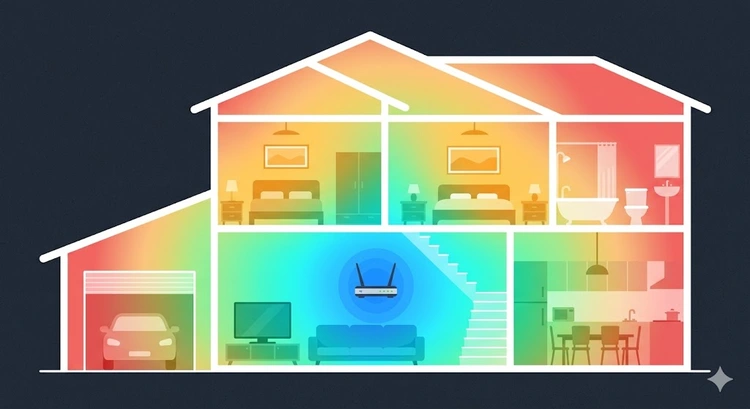
WiFi coverage depends on a complex interplay of transmit power, frequency, obstacles, and interference. Unlike wired connections that use fixed cable lengths, wireless signals degrade over distance following the inverse-square law. Our estimator uses the free space path loss model adjusted for real-world indoor conditions.
Your router's coverage area is not a perfect circle — walls, furniture, and appliances create an irregular coverage pattern. This tool provides a useful approximation to help you plan your network before running a speed test at various locations.
Not all routers are created equal. The number of antennas, transmit power, and beamforming capability directly affect how far your signal reaches. Newer WiFi 6 routers with MU-MIMO technology can serve more devices simultaneously without reducing range:
| Router Type | Typical Tx Power | Antenna Config | Approx. Range (5 GHz) | Best For |
|---|---|---|---|---|
| Budget | 14-17 dBm | 1x1 or 2x2 | 40-60 ft | Small apartment, 1-2 rooms |
| Mid-Range | 18-20 dBm | 2x2 or 3x3 | 60-90 ft | Medium home, 3-5 rooms |
| High-End | 20-23 dBm | 4x4 MU-MIMO | 80-120 ft | Large home, gaming, streaming |
| Mesh Node | 18-20 dBm | 2x2 per node | 50-75 ft per node | Multi-room, multi-floor |
| Enterprise AP | 23-27 dBm | 4x4 or 8x8 | 100-150 ft | Office, warehouse, large venue |
Pro Tip: If your coverage estimate shows your home extends beyond the "Good" zone, don't just buy a more powerful router. A mesh WiFi system with multiple nodes placed strategically will outperform a single high-power router in most multi-room scenarios. Use our Router Placement Optimizer to find the best position for each node.
The choice between 2.4 GHz and 5 GHz is the most significant factor in coverage radius. Lower frequencies propagate farther and penetrate walls better, while higher frequencies offer more bandwidth. Modern dual-band routers let you use both simultaneously, assigning devices to the optimal band based on distance and usage.
WiFi 6E adds the 6 GHz band, which offers the fastest speeds but the shortest range. It is ideal for devices in the same room as the router. Use the Antenna Gain Calculator to understand how antenna configuration affects each band's performance.
Every wall between your router and device reduces signal strength. The material matters far more than the number of walls in some cases — one concrete wall can do as much damage as four drywall partitions. If you live in an apartment with thick walls, this is critical to understand:
| Material | 2.4 GHz Loss | 5 GHz Loss | Equivalent Range Reduction |
|---|---|---|---|
| Drywall | 3 dB | 4 dB | ~20% |
| Plaster | 5 dB | 7 dB | ~35% |
| Brick | 8 dB | 10 dB | ~50% |
| Concrete | 12 dB | 16 dB | ~65% |
| Metal/Foil | 16 dB | 22 dB | ~80% |
Neighboring WiFi networks, Bluetooth devices, microwaves, and baby monitors all compete for the same frequency spectrum. In a dense apartment complex, interference can reduce effective range by 15-30%. Use a WiFi channel finder to identify the least congested channel, then change your WiFi channel accordingly.
The Signal Strength Converter can help you translate between dBm readings and percentage values when measuring interference. For a quick check, run a ping test — high latency variance often indicates interference issues.
If the estimator shows your current setup falls short, consider these solutions ranked by effectiveness:
Typical indoor WiFi range is 80-150 feet on 2.4 GHz and 40-80 feet on 5 GHz, depending on the router and obstacles. Concrete walls can cut these numbers in half. Our estimator accounts for your specific materials and router type to give a realistic projection.
The most common causes are thick wall materials (brick, concrete, plaster with metal lath), the router being placed in a corner or on the floor, or severe channel congestion from neighboring networks. Use our placement optimizer and channel finder to diagnose the issue.
Connected devices don't shrink the physical coverage radius, but they do reduce available bandwidth per device. A router supporting 30 devices may slow down significantly if all are active simultaneously. High-end routers with MU-MIMO handle concurrent connections better.
No — 2.4 GHz provides roughly double the coverage range of 5 GHz. However, 5 GHz is better for speed in areas with strong signal. Use dual-band to get both: 2.4 GHz for distant devices and 5 GHz for nearby high-bandwidth tasks.
Walk around your space with a WiFi analyzer app on your phone. Note the signal strength (dBm) at various locations. Above -50 dBm is excellent, -50 to -67 is good, -67 to -72 is fair, and below -72 is weak. Our Signal Strength Converter helps interpret these readings.
Yes. Relocate the router to a central position, elevate it to 5-7 feet, switch to a less congested WiFi channel, and remove physical obstacles. These free optimizations can improve coverage by 20-40% before spending on new equipment.

About Tommy N.
Tommy is the founder of RouterHax and a network engineer with 10+ years of experience in home and enterprise networking. He specializes in router configuration, WiFi optimization, and network security. When not writing guides, he's testing the latest mesh WiFi systems and helping readers troubleshoot their home networks.
 |
 |
 |
 |
Search
Popular Tools
Browse Guides
Promotion for FREE Gifts. Moreover, Free Items here. Disable Ad Blocker to get them all.
Once done, hit any button as below
|
|
|
|