by Tommy N. Updated Apr 12, 2026
Running a WiFi speed test takes less than a minute, but understanding what the numbers mean — and what to do about them — is where most people get stuck. Your internet speed affects everything from video call quality to how fast web pages load, and knowing whether you're getting what you pay for from your ISP is the first step to fixing slow connections.

In this guide, we'll walk you through how to run an accurate speed test using our free speed test tool, explain every metric in your results, and tell you exactly when it's time to call your ISP. If you're also curious about your network identity, check what an IP address is and how it relates to your connection.
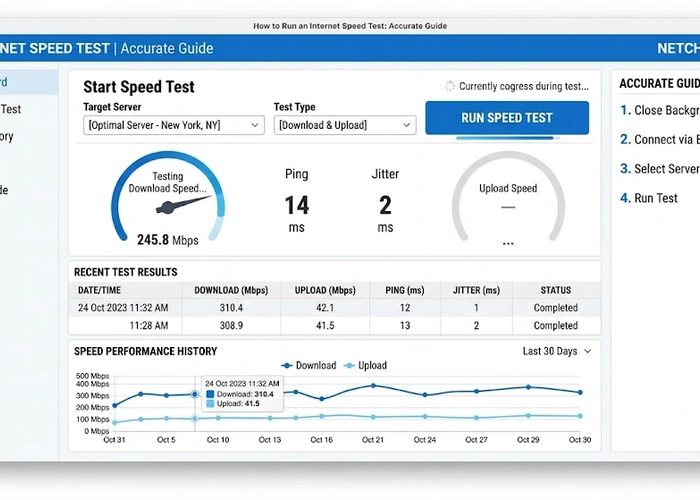
Running a speed test is simple, but doing it correctly requires a few steps to ensure accurate results:
Step 1: Close background applications. Streaming services, cloud backups, and large downloads all consume bandwidth. Close everything except your browser to get a clean measurement.
Step 2: Disconnect other devices (optional). For the most accurate test, disconnect other devices from your WiFi temporarily. If that's not practical, at least make sure no one is streaming or downloading during the test.
Step 3: Run the test. Visit our speed test page and click the start button. The test will measure your download speed, upload speed, and ping in about 30-60 seconds.
Step 4: Run the test on Ethernet. For a true baseline of your ISP connection, connect your computer directly to your router via Ethernet cable and run the test again. This eliminates WiFi variables and shows your raw internet speed.
Step 5: Compare results. If your Ethernet speed is significantly faster than WiFi, the bottleneck is your wireless connection — not your ISP. If both are slow, the issue is likely with your internet service provider.
Internet speeds fluctuate throughout the day. Run tests at different times — morning, afternoon, and evening — to get a complete picture. Peak hours (7-11 PM) often show slower speeds due to neighborhood congestion. Run at least 3 tests and average the results for the most accurate measurement.
Download speed measures how fast data travels from the internet to your device. It's measured in megabits per second (Mbps) and affects virtually everything you do online — loading web pages, streaming video, downloading files, and receiving email attachments.
Higher download speeds mean faster loading and less buffering. Here's what different speed levels can handle:
| Download Speed | What You Can Do |
|---|---|
| 1-5 Mbps | Basic browsing, email, standard definition video |
| 5-25 Mbps | HD video streaming, video calls, online gaming |
| 25-100 Mbps | 4K streaming, multiple devices, large downloads |
| 100-500 Mbps | Multiple 4K streams, fast downloads, smart home devices |
| 500+ Mbps | 8K streaming, large household, work from home |
Upload speed measures how fast data travels from your device to the internet. It's typically much slower than download speed on cable and DSL connections (asymmetric) but equal on fiber connections (symmetric).
Upload speed matters most for video calls (Zoom, Teams), live streaming, uploading files to cloud storage, sending large email attachments, and online gaming (sending your player data to the game server). If you work from home with frequent video conferences, aim for at least 10 Mbps upload speed.
Ping measures the round-trip time for a small data packet to travel from your device to the server and back. It's measured in milliseconds (ms). Lower ping is better — it means your connection is more responsive.
Ping is critical for real-time activities like online gaming, video calls, and VoIP phone calls. Unlike download speed, which affects how fast large amounts of data transfer, ping affects how quickly your actions register. A gamer with 10ms ping has a real advantage over someone with 80ms ping. You can learn more about how your network routes data in our gateway guide.
Jitter is the variation in ping over time. If your ping fluctuates between 15ms and 85ms, you have high jitter even though your average ping might look acceptable. Jitter causes audio cutting out on calls, video freezing momentarily, and rubber-banding in games.
Good jitter is under 5ms. Acceptable jitter is 5-30ms. Jitter over 30ms causes noticeable issues with real-time applications. Jitter is often caused by WiFi interference, network congestion, or an overloaded router. Switching to Ethernet typically eliminates jitter problems.
| Connection Type | Typical Download | Typical Upload | Typical Ping | Notes |
|---|---|---|---|---|
| DSL | 5-100 Mbps | 1-10 Mbps | 25-50ms | Speed decreases with distance from exchange |
| Cable | 50-1,200 Mbps | 5-50 Mbps | 15-35ms | Shared bandwidth; slows during peak hours |
| Fiber | 100-10,000 Mbps | 100-10,000 Mbps | 5-15ms | Symmetric speeds; most reliable |
| 5G Home | 100-1,000 Mbps | 20-100 Mbps | 20-40ms | Varies by coverage and tower congestion |
| Satellite | 25-200 Mbps | 3-10 Mbps | 200-600ms | High latency due to distance; weather-affected |
| Fixed Wireless | 25-500 Mbps | 5-50 Mbps | 20-50ms | Depends on line of sight to tower |
If you run multiple speed tests and get different results each time, that's completely normal. Several factors cause variation:
Server distance: Speed tests connect to a nearby server, but the specific server chosen affects results. Test servers farther away will show slower speeds due to network hops and routing. Try selecting different test servers to compare.
Time of day: Internet traffic follows predictable patterns. Speeds tend to be fastest in early morning and slowest during evening peak hours (7-11 PM) when everyone in your neighborhood is streaming and browsing.
Network congestion: Cable internet shares bandwidth with your neighbors. During peak times, more people using the same infrastructure means less bandwidth for each household. This is less of an issue with fiber connections.
WiFi interference: If testing over WiFi, nearby networks, microwave ovens, Bluetooth devices, and even thick walls can interfere with your signal. The 5 GHz band is less prone to interference than 2.4 GHz. Your DNS configuration also affects perceived browsing speed, though it doesn't impact raw throughput.
Router performance: An older or overloaded router can bottleneck your connection. If your Ethernet speed test shows significantly faster results than WiFi, your router may need an upgrade or firmware update.
For the most accurate and useful results, follow this testing protocol:
Establish your baseline: Connect directly to your modem via Ethernet (bypassing your router) and run a speed test. This is the maximum speed your ISP is delivering to your home. If this number is far below your plan speed, the issue is with your ISP.
Test through your router: Connect to your router via Ethernet and test again. If speeds drop significantly, your router is the bottleneck. Resetting your router or updating firmware may help.
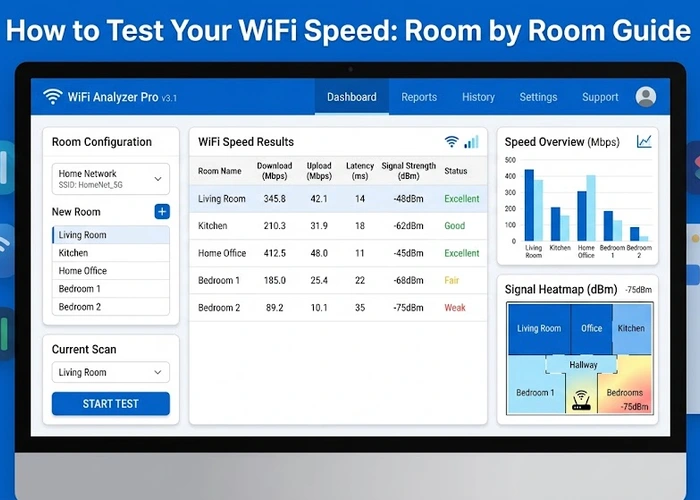
Test over WiFi: Run the test over WiFi in the room where your router is located, then test in rooms where you actually use the internet. This shows how much speed you lose to distance and obstacles.
Test at different times: Run tests at morning, midday, and evening to identify whether your ISP's performance varies with peak usage. If you see a consistent drop during evening hours, your provider may be overselling capacity in your area.
Pro Tip: Keep a log of your speed test results over a week or two. Document the date, time, test type (Ethernet vs WiFi), and speeds. If you need to contact your ISP about consistently slow speeds, this data is invaluable evidence. Many ISPs will credit your account or send a technician if you can demonstrate persistent underperformance with documented tests. You can also change your DNS settings to potentially improve browsing speed.
Not every slow speed warrants a call to your ISP, but certain patterns clearly indicate a problem on their end:
Consistently below 70% of your plan speed over Ethernet: If you pay for 300 Mbps and consistently get under 210 Mbps when connected directly to your modem via Ethernet, your ISP isn't delivering what you're paying for.
Dramatic speed drops during peak hours: While some variation is normal, losing more than 50% of your speed during evening hours suggests oversold capacity in your neighborhood.
High packet loss: If your speed test shows packet loss above 1%, you have a connection quality issue that your ISP needs to address. This causes buffering, dropped calls, and game disconnects.
Sudden persistent speed changes: If your speed drops significantly from one day to the next and stays low, there may be a line issue, equipment failure, or unauthorized change to your plan.
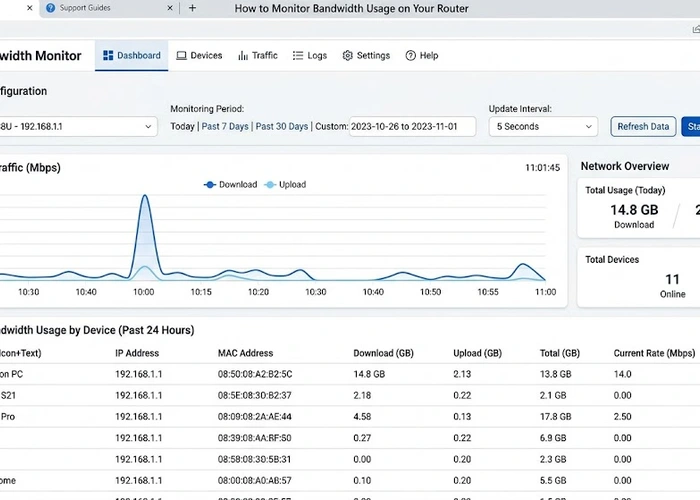
When you call, have your speed test logs ready, note whether you tested over Ethernet, and be specific about the speeds you're seeing versus what you're paying for. ISPs take Ethernet test results more seriously than WiFi tests because they eliminate variables outside the ISP's control. If you're troubleshooting further, check who is connected to your WiFi to rule out unauthorized bandwidth usage.
WiFi always delivers less than your full plan speed due to wireless overhead, signal degradation through walls, interference from other devices, and distance from the router. Test over Ethernet to see your true ISP speed. If Ethernet is close to your plan speed, your WiFi — not your ISP — is the limiting factor. Consider upgrading your router or improving its placement. Finding your router's IP lets you access settings to optimize your WiFi channels.
For a household of 2-4 people with typical usage (streaming, browsing, video calls), 100-300 Mbps is sufficient. Larger households or those with heavy usage (multiple 4K streams, gaming, work from home) should aim for 500 Mbps or more. Single users with basic needs can get by with 25-50 Mbps.
Yes. Closer servers generally show faster results because data travels a shorter distance with fewer network hops. For the most realistic measurement, test with a server in your region. For checking performance to specific services, some speed tests let you choose servers near major content providers.
Most cable and DSL connections are asymmetric — they allocate more bandwidth to downloads because most users consume more data than they upload. Fiber connections typically offer symmetric speeds (equal upload and download). If you need faster uploads for video calls or content creation, consider upgrading to fiber if available.
Run a speed test whenever you notice slow performance, after changing network equipment, and periodically (monthly) to ensure your ISP is delivering consistent speeds. If you suspect throttling, test during both peak and off-peak hours to compare.
Absolutely. An older router with slow processing power, outdated WiFi standards, or limited Ethernet port speeds can cap your actual throughput well below your ISP plan speed. If your Ethernet test through the router is slower than a direct modem connection, your router is the bottleneck. Updating firmware may help, but hardware limitations can't be fixed with software.
Learn more about how speed tests work and the methodology behind them at Speedtest by Ookla's About page.
 |
 |
 |
 |

About Tommy N.
Tommy is the founder of RouterHax and a network engineer with 10+ years of experience in home and enterprise networking. He specializes in router configuration, WiFi optimization, and network security. When not writing guides, he's testing the latest mesh WiFi systems and helping readers troubleshoot their home networks.
Promotion for FREE Gifts. Moreover, Free Items here. Disable Ad Blocker to get them all.
Once done, hit any button as below
|
|
|
|