
by Priya Nakamura Updated Apr 24, 2026
If your video calls drop in the bedroom but stream fine in the living room, the culprit is almost always inconsistent WiFi coverage — and the only way to know for sure is to test your WiFi speed room by room. Running a structured speed test throughout your home gives you hard data on exactly where your signal degrades, so you can fix the problem instead of guessing.
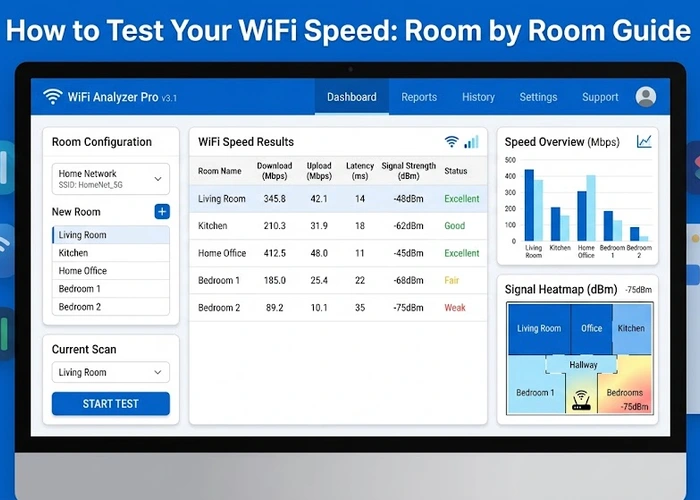
In this guide you will learn how to run accurate WiFi speed tests in every room, interpret the results, and take targeted action to eliminate dead zones. Whether you are troubleshooting slow WiFi or simply trying to understand how your network performs across your home, this room-by-room method is the most reliable approach available to any home user.

A WiFi speed test measures three core values: download speed, upload speed, and latency (ping). Download speed tells you how fast data travels from the internet to your device — the number most people care about for streaming and browsing. Upload speed matters for video conferencing, cloud backups, and gaming. Latency is the round-trip delay between your device and a remote server, measured in milliseconds; anything under 20 ms is excellent for gaming, while under 50 ms is fine for most home use.
What most users do not realize is that these numbers vary dramatically depending on where you are in your home. WiFi signals are radio waves that weaken as they travel through walls, floors, furniture, and appliances. A concrete wall can cut signal strength by 50% or more. A single brick wall between your router and your device can drop your effective throughput from 300 Mbps down to under 50 Mbps. This is why a speed test at your router might show perfect results while your bedroom feels unusably slow.
It is also important to understand the difference between your internet plan speed and your WiFi speed. Your internet service provider (ISP) delivers a maximum speed to your modem — say 500 Mbps — but your WiFi router then broadcasts that connection wirelessly to your devices. Every wall, every floor, and every competing device reduces what actually arrives at your laptop or phone. Testing room by room reveals the gap between what you are paying for and what you are actually getting at each location.
Speed test tools work by connecting to a nearby server and exchanging data packets as fast as possible for a short period — typically 10 to 30 seconds. The test reports the maximum sustained throughput achieved during that window. For a room-by-room audit, you need a consistent tool so your results are comparable across locations. Our built-in speed test tool runs directly from your browser with no app required, making it ideal for moving from room to room without installing anything.
Follow these steps in order to get accurate, comparable results across every room in your home.
This table shows typical speed retention percentages you can expect at various distances and obstacles from a modern dual-band router running at 5 GHz. Results will vary by router model, home construction, and interference sources.
| Location / Obstacle | Typical Distance | Expected Speed Retention | Usable For |
|---|---|---|---|
| Same room as router | 0–15 ft | 85–100% | 4K streaming, large downloads, gaming |
| Adjacent room (drywall) | 15–30 ft | 60–85% | HD streaming, video calls, browsing |
| Two rooms away (2 drywall walls) | 30–50 ft | 30–60% | SD streaming, browsing, light use |
| Different floor (wood/drywall ceiling) | 10–25 ft vertical | 25–50% | Browsing, email, light streaming |
| Basement or far bedroom (concrete/brick) | 40–80 ft + concrete | 5–25% | Basic browsing only; dead zone risk |
When testing rooms far from your router, manually connect your device to your router's 2.4 GHz network before testing. The 2.4 GHz band has a much longer range than 5 GHz — it penetrates walls better and covers larger distances, though at lower peak speeds. If your 2.4 GHz result is also poor in a distant room, you have a genuine dead zone that requires a hardware solution like a mesh node or WiFi extender.
Once you have your room-by-room data, the next step is understanding why certain rooms underperform and what you can realistically do about it. The most common cause of dramatic speed drops is physical obstruction — thick walls, metal appliances, and concrete floors are the usual suspects. If your kitchen shows terrible speeds despite being relatively close to your router, check whether large metal appliances (refrigerators, ovens) sit between the router and the test location; metal reflects radio waves and creates shadow zones.
Router placement is the single highest-impact variable for most homes. Routers placed inside entertainment centers, inside closets, or on the floor behind furniture lose a significant fraction of their effective range before the signal even reaches the open room. Ideally, your router should be mounted on a wall or placed on a high shelf in a central location with line-of-sight access to as many rooms as possible. If repositioning the router is not an option, you may want to change your WiFi channel to reduce interference from neighboring networks, which can masquerade as coverage problems in speed test results.
Interference from other devices on the same frequency is another common culprit. Microwave ovens, baby monitors, and older cordless phones operate on 2.4 GHz and can significantly disrupt WiFi performance in adjacent rooms. Running your room tests while these devices are active versus inactive will tell you whether interference is a factor. If kitchen-adjacent rooms test poorly only at certain times, appliance interference is likely the cause.
Pro Tip: Before spending money on new hardware, run our WiFi Channel Finder tool to see which channels neighboring networks are using. Switching your router to a less congested channel is free and can dramatically improve speed test results in rooms near exterior walls where neighbor networks bleed in.
Run a full room-by-room audit whenever you notice performance problems or after making changes to your network setup, such as moving the router, adding a new device, or switching ISP plans. A quick spot-check in your most-used rooms every few months is also a good habit to catch gradual degradation before it becomes noticeable. If you recently changed your WiFi channel, re-test all rooms to confirm the improvement is consistent across your home.
For most household activities, a download speed of 25 Mbps per device is sufficient for HD streaming and video calls. 4K streaming requires at least 25 Mbps per stream, and online gaming benefits from speeds above 50 Mbps combined with latency under 30 ms. If your room-by-room tests consistently show speeds below 10 Mbps in regularly used spaces, that room has a coverage problem worth addressing.
Test on whichever device you actually use in that room — the goal is to measure real-world performance for your use case. Laptops with WiFi 6 or WiFi 5 adapters will typically show higher speeds than older smartphones. If you test on multiple devices, note the device used alongside each result, since hardware differences can account for 30–50% variation in measured speeds independent of the network.
WiFi performance fluctuates based on network congestion, interference from nearby devices, and the behavior of automatic background processes on your device (cloud sync, updates, antivirus scans). This is why running three tests and taking the median is important. If results vary by more than 50% between tests in the same location, you likely have an interference problem — try testing at different times of day and check for competing 2.4 GHz devices nearby.
A sharp drop-off over short distances almost always points to a physical obstruction problem rather than an internet plan issue. Identify what sits between your router and the weak room — concrete walls, large metal appliances, or a fireplace are the most common culprits. Repositioning your router closer to the center of your home or adding a mesh WiFi node in the hallway between the router and the weak room are the two most effective solutions.
Yes — every active device consuming bandwidth reduces the available throughput for your test. For the most accurate results, pause or disconnect other devices before running your room tests. If you want to measure real-world performance under load — for example, to understand what your home office speed looks like when kids are streaming — run tests with the network under its normal usage load and note the conditions alongside your results.
For authoritative networking standards and specifications, refer to the Internet Assigned Numbers Authority (IANA) or IETF RFC documents.
 |
 |
 |
 |

About Priya Nakamura
Priya Nakamura is a telecommunications engineer and networking educator with a Master degree in Computer Networks and a background in ISP infrastructure design and management. Her experience spans both the technical architecture of broadband networks and the practical challenges home users face when configuring routers, managing wireless coverage, and understanding connectivity standards. At RouterHax, she covers WiFi standards and protocols, networking concepts, IP addressing, and network configuration guides.
Search
Popular Tools
Browse Guides
Promotion for FREE Gifts. Moreover, Free Items here. Disable Ad Blocker to get them all.
Once done, hit any button as below
|
|
|
|


