
by Priya Nakamura Updated Apr 23, 2026
Running an internet speed test is the fastest way to find out if you're actually getting the speeds your ISP promised — or if something is slowing you down. Whether your video calls keep freezing, your downloads feel sluggish, or you just want to verify your plan, knowing how to run an accurate speed test puts real data in your hands.
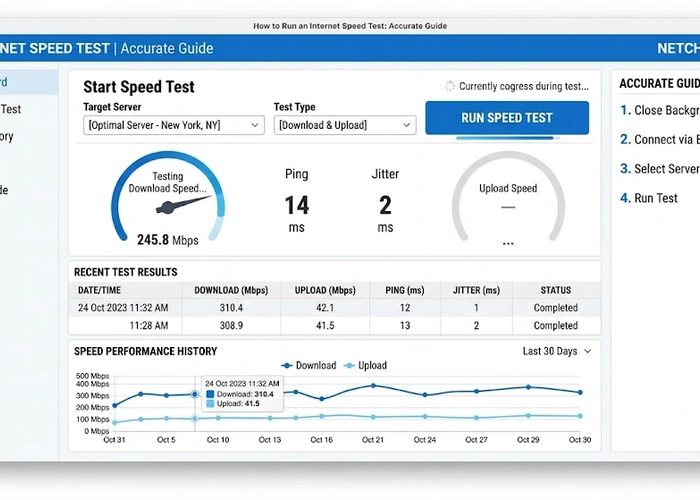
In this guide you'll learn exactly how internet speed tests work, how to run one correctly, and how to interpret your results so you can take action. If your results come back lower than expected, understanding the numbers is the first step — and our guide on slow Wi-Fi can help you track down the root cause. You may also want to know what an IP address is before diving into network diagnostics.

An internet speed test measures the rate at which data travels between your device and a remote server. When you initiate a test, the testing service sends a series of data packets from a nearby server to your device (download) and then from your device back to that server (upload). The tool records how quickly those packets arrive and calculates your speed in megabits per second (Mbps) or gigabits per second (Gbps). The entire process typically takes under 30 seconds and gives you three core metrics: download speed, upload speed, and latency (ping).
Download speed is the one most people care about — it governs how fast web pages load, how quickly files transfer to your device, and how smoothly streaming video plays. Upload speed matters more than most people realize; it affects video calls, cloud backups, and any time you're sending data out rather than pulling it in. A 50 Mbps download connection might feel perfectly fine for browsing, but if your upload speed is only 5 Mbps, a Zoom call with screen sharing can feel painful.
Ping, measured in milliseconds (ms), tells you the round-trip time for a small packet of data to travel from your device to the server and back. Low ping (under 20 ms) means a very responsive connection — critical for online gaming and real-time applications. Jitter is a related measurement: it tracks the variation in ping over time. High jitter, even with low average ping, causes choppy audio and dropped video frames because packets arrive at irregular intervals rather than a steady stream.
Speed test results reflect conditions at the exact moment you run the test. Network congestion, Wi-Fi interference, background downloads, and even the specific test server you connect to can all shift your numbers. That's why running multiple tests at different times of day gives you a more accurate picture of your real-world connection quality than a single reading ever could.
Follow these steps to get the most accurate and useful results from your speed test.
Not everyone needs the same connection speed. Here's a practical breakdown of how much bandwidth common activities actually require, so you can judge whether your results are truly sufficient for your household.
| Activity | Min. Download | Recommended | Upload Needed |
|---|---|---|---|
| Web browsing & email | 1 Mbps | 5 Mbps | 1 Mbps |
| HD video streaming (1080p) | 5 Mbps | 10 Mbps | Low |
| 4K/UHD streaming | 15 Mbps | 25 Mbps | Low |
| Video calling (HD) | 3 Mbps | 10 Mbps | 3 Mbps |
| Online gaming | 3 Mbps | 25 Mbps | 1 Mbps |
| Remote work / screen share | 10 Mbps | 25 Mbps | 5 Mbps |
Many ISPs deliver excellent speeds at 10 AM on a Tuesday but throttle during evening peak hours (7–10 PM) when network congestion is highest. Run your speed test during the time of day when you actually use the internet most heavily — that's the number that matters for your day-to-day experience, not the best-case result you get at 3 AM.
If your speed test results are disappointing, don't call your ISP right away — there are several things to check on your end first. Start by testing from multiple devices and over both ethernet and Wi-Fi. If your wired speed is fine but Wi-Fi is slow, the problem is almost certainly in your wireless setup rather than your ISP connection. Check our guide on changing your Wi-Fi channel to reduce interference from neighboring networks, which is one of the most common culprits for unexpectedly poor wireless performance.
Router hardware and firmware also play a big role. An older router may not be capable of routing traffic fast enough to take full advantage of a gigabit internet plan, and outdated firmware can introduce performance regressions. Make sure your router's firmware is current — see our router firmware update guide for step-by-step instructions. If your router is several years old and you're on a high-speed plan, upgrading the hardware may deliver a more noticeable improvement than any software tweak.
DNS resolution speed doesn't affect your raw bandwidth numbers, but it does affect how quickly pages and apps load in practice. A slow DNS server can make a fast connection feel sluggish. Consider switching to a faster public DNS provider — our guide on changing DNS on your router walks you through the process for the most common router models.
Pro Tip: Use our Ping Test tool alongside your speed test to measure latency to multiple servers simultaneously. High ping to nearby servers while your download speed looks normal often points to routing problems or ISP peering issues rather than raw bandwidth constraints — useful data when escalating to your ISP's technical support team.
Running a speed test once a month gives you a good baseline, but you should also test any time your connection feels sluggish or before contacting your ISP to report a problem. Keeping a log of results over time helps you spot patterns like consistent evening slowdowns that point to ISP congestion rather than a hardware issue on your end.
For a household with 2–4 people streaming, video calling, and browsing simultaneously, 100 Mbps download is generally comfortable. For larger households or heavy 4K streaming and remote work, 300 Mbps or more gives you headroom to spare. The most important thing is that your measured speed matches the plan you're paying for — if you're on a 1 Gbps plan and only getting 100 Mbps over ethernet, something is wrong.
ISPs advertise maximum theoretical speeds, and real-world results are almost always lower due to network congestion, the quality of wiring in your home, and router hardware limitations. Testing over Wi-Fi instead of ethernet is the single most common reason for artificially low results. If your wired speed is consistently below 80% of your advertised plan, contact your ISP with your test data.
Yes — selecting a server that's geographically far from you adds latency and can reduce measured throughput, making your connection appear slower than it actually is. Always choose the closest available server for the most accurate representation of your connection. Most speed test tools automatically select the nearest server, but it's worth confirming before you run the test.
Absolutely. A router that can't process packets fast enough will become the bottleneck on high-speed plans — this is called the "NAT forwarding rate" limitation. Outdated firmware, overheating, and memory issues can all cause a router to underperform. Try resetting your router to factory defaults if you've ruled out ISP and device issues, as corrupted settings can sometimes dramatically limit throughput.
For online gaming, a ping under 30 ms is excellent, 30–60 ms is good, and anything above 100 ms will cause noticeable lag. For video calls, ping under 150 ms is generally acceptable, but jitter matters just as much — high jitter causes choppy audio even when average latency is low. A wired ethernet connection almost always delivers lower and more stable ping than Wi-Fi.
For authoritative networking standards and specifications, refer to the Internet Assigned Numbers Authority (IANA) or IETF RFC documents.
 |
 |
 |
 |

About Priya Nakamura
Priya Nakamura is a telecommunications engineer and networking educator with a Master degree in Computer Networks and a background in ISP infrastructure design and management. Her experience spans both the technical architecture of broadband networks and the practical challenges home users face when configuring routers, managing wireless coverage, and understanding connectivity standards. At RouterHax, she covers WiFi standards and protocols, networking concepts, IP addressing, and network configuration guides.
Search
Popular Tools
Browse Guides
Promotion for FREE Gifts. Moreover, Free Items here. Disable Ad Blocker to get them all.
Once done, hit any button as below
|
|
|
|


