by Tommy N. Updated Apr 23, 2026
If you've ever wondered why your internet plan promises 500 Mbps but your downloads never seem to hit that number, you're already bumping up against the difference between bandwidth and throughput. These two terms get used interchangeably all the time — even by ISPs who should know better — but they describe fundamentally different things that have a very real impact on your home network's performance.

In this guide you'll learn exactly what bandwidth and throughput mean, how to measure both, and — most importantly — what you can actually do when your real-world speeds fall short of what you're paying for. If you're already dealing with sluggish speeds, you may also want to check out our guide on fixing slow Wi-Fi or use our bandwidth calculator to estimate what your household actually needs.

Bandwidth is best understood as the theoretical maximum capacity of a network link — the size of the pipe, not the speed of the water flowing through it. When your ISP sells you a "1 Gbps" plan, that 1 Gbps figure is bandwidth: the absolute ceiling your connection could theoretically reach under perfect conditions. It's a hardware and infrastructure measurement, set by the physical medium (fiber, coaxial cable, copper wire) and the equipment on both ends of the link. You can think of it like the number of lanes on a highway.
Throughput, on the other hand, is what actually gets delivered. It's the measured rate at which data successfully travels from one point to another in a given period of time. Where bandwidth is theoretical, throughput is empirical — it's what a speed test actually measures. Throughput is always equal to or less than bandwidth, because the real world introduces friction: congestion, protocol overhead, signal interference, hardware limitations, and more all chip away at that theoretical maximum. Using the highway analogy, throughput is the actual number of cars moving past a point per minute, not the number of lanes.
A third term often thrown into this mix is latency, which measures the delay (in milliseconds) it takes for a single packet to travel from source to destination. Latency is distinct from both bandwidth and throughput, though it can affect throughput significantly. A high-bandwidth, high-latency connection — like an old satellite link — can have enormous theoretical capacity but terrible throughput for real-time applications because every data exchange involves a long round-trip delay. Understanding all three concepts together gives you the complete picture of your network's behavior.
The gap between bandwidth and throughput is called overhead or efficiency loss, and it exists on every network without exception. TCP/IP protocols, for instance, require handshakes, acknowledgment packets, and retransmissions that consume a portion of your available bandwidth before a single byte of your actual data is transferred. On a well-tuned wired connection, you might achieve 90–95% of rated bandwidth as actual throughput. Our Network Throughput Calculator works out goodput from link speed after protocol overhead for any connection type. On a congested Wi-Fi network with interference, that figure can drop below 50%.
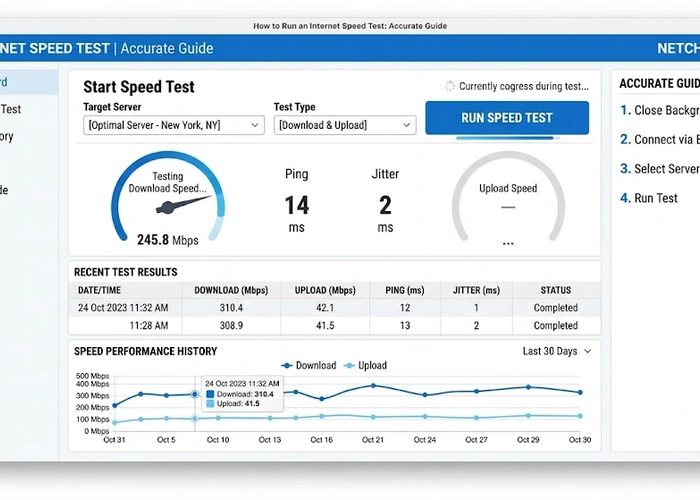
Getting reliable measurements requires testing at the right points in your network and under the right conditions. Follow these steps for an accurate picture.
The gap between rated bandwidth and actual throughput varies widely depending on connection type, protocol, and environment. Here's how common setups compare.
| Connection Type | Rated Bandwidth | Typical Throughput | Primary Limiting Factor |
|---|---|---|---|
| Gigabit Fiber (wired) | 1000 Mbps | 900–950 Mbps | Protocol overhead |
| Cable (DOCSIS 3.1) | 500 Mbps | 350–480 Mbps | Shared node congestion |
| Wi-Fi 6 (5 GHz, nearby) | 1200 Mbps | 600–900 Mbps | OFDMA overhead, interference |
| Wi-Fi 5 (5 GHz, nearby) | 867 Mbps | 400–600 Mbps | Channel contention, overhead |
| Wi-Fi 4 (2.4 GHz) | 300 Mbps | 80–150 Mbps | Interference, channel width |
Even if your ISP delivers full-rated throughput to your modem, an underpowered router can become the bottleneck — especially if you're running QoS, VPN passthrough, or network-wide ad blocking. If your wired speed tests from devices connected directly to the modem are faster than those connected to your router, your router's CPU is likely the limiting factor. Updating your router's firmware (see our firmware update guide) can sometimes improve throughput, as manufacturers push routing performance optimizations in updates.
When your throughput is significantly lower than your rated bandwidth, systematic diagnosis beats random troubleshooting. Start at the ISP connection and work inward — you need to isolate whether the bottleneck is upstream (ISP side), at your modem/router, or in your local wireless environment. Most home users have never changed their Wi-Fi channel, which is one of the easiest free fixes for poor wireless throughput caused by interference from neighboring networks.
Interference on the 2.4 GHz band is an extremely common culprit. This band is shared with microwaves, baby monitors, Bluetooth devices, and — in dense neighborhoods — dozens of competing Wi-Fi networks. Switching devices that need high throughput (streaming, gaming) to the 5 GHz band and running our Wi-Fi channel finder to pick the least congested channel can dramatically close the gap between your rated bandwidth and real-world throughput.
Pro Tip: Run our ping test tool alongside a speed test to check latency and packet loss at the same time. High packet loss (anything above 1%) forces TCP to retransmit data, which directly tanks your throughput even when your bandwidth is perfectly healthy — making it look like a speed problem when it's actually a reliability problem.
Bandwidth is the maximum theoretical capacity of your connection — the size of the pipe. Throughput is the actual data rate you experience in practice — the flow through the pipe. Real-world throughput is always lower than rated bandwidth due to protocol overhead, interference, congestion, and hardware limitations. You can measure your actual throughput using a speed test.
Several factors reduce throughput below rated bandwidth: network congestion (especially during peak hours), Wi-Fi interference, an underpowered router, TCP protocol overhead, and background applications consuming bandwidth on your devices. Start by testing with a wired connection directly from your modem to isolate whether the gap originates at the ISP level or within your home network.
Upgrading your plan increases your bandwidth ceiling, which can increase throughput — but only if bandwidth was actually the bottleneck. If your current plan delivers 90% of rated speeds but your router or Wi-Fi environment is limiting performance, a faster plan won't help. Diagnose the actual bottleneck before upgrading.
No — latency and throughput are distinct metrics that both affect your network experience. Latency measures the delay (in milliseconds) for a packet to travel from one point to another, while throughput measures the volume of data transferred per second. High latency can indirectly reduce throughput in TCP connections by slowing acknowledgment cycles, but a low-latency connection can still have low throughput if bandwidth is limited.
On a typical TCP/IP connection, protocol headers and acknowledgment packets consume roughly 2–10% of your bandwidth. On wireless connections, additional MAC-layer overhead, CSMA/CA collision avoidance, and retransmissions can reduce effective throughput by 20–50% compared to the physical layer's rated bandwidth. This is why Wi-Fi specs (like "Wi-Fi 6: up to 9.6 Gbps") never translate directly to real-world throughput.
Absolutely — and it's more common than most people realize. If your ISP delivers full bandwidth but your router is overloaded, your Wi-Fi channel is congested, or a device on your network is saturating your uplink, your perceived internet speed will be slow despite the available bandwidth. Running a wired speed test and checking who is on your Wi-Fi network are the first diagnostic steps to take in this scenario.
For authoritative networking standards and specifications, refer to the Internet Assigned Numbers Authority (IANA) or IETF RFC documents.
 |
 |
 |
 |

About Tommy N.
Tommy is the founder of RouterHax and a network engineer with over ten years of experience in home and enterprise networking. He has configured and troubleshot networks ranging from simple home setups to multi-site enterprise deployments, with deep hands-on experience in router configuration, WiFi optimization, and network security. At RouterHax, he oversees editorial direction and covers home networking guides, mesh WiFi system reviews, and practical troubleshooting resources for everyday users.
Search
Popular Tools
Browse Guides
Promotion for FREE Gifts. Moreover, Free Items here. Disable Ad Blocker to get them all.
Once done, hit any button as below
|
|
|
|