
by Tommy N. Updated Apr 23, 2026
If your WiFi feels sluggish or keeps dropping out, the channel your router is broadcasting on could be the culprit — and most people never think to check it. Understanding WiFi channels explained in plain English can transform a frustrating connection into a rock-solid one without spending a dime on new hardware.
In this guide you will learn exactly what WiFi channels are, how the 2.4 GHz and 5 GHz bands divide up the airwaves, and the step-by-step process for picking the least-congested channel in your home. Along the way you will also find out how a bad channel choice links directly to slow WiFi and how to fix it by changing your WiFi channel in your router's dashboard.
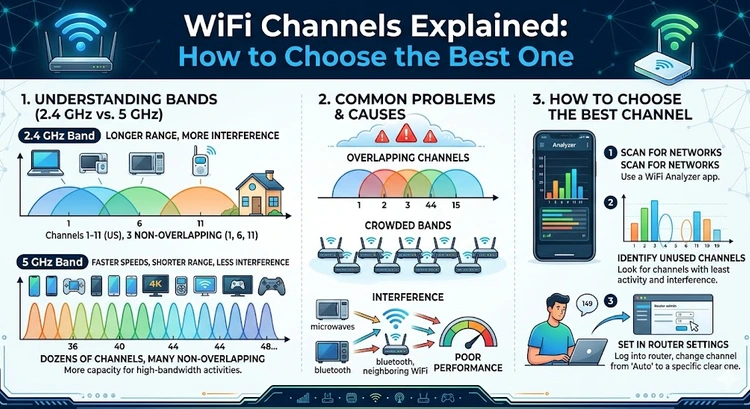
A WiFi channel is a narrow slice of radio frequency spectrum that your router uses to send and receive data. Think of it like lanes on a highway: the more cars that crowd into a single lane, the slower everyone moves. When multiple routers in your neighborhood broadcast on the same channel, their signals collide and interfere with each other, which the protocol must resolve by retransmitting data — and that retransmission is what you experience as slowness or dropped packets.
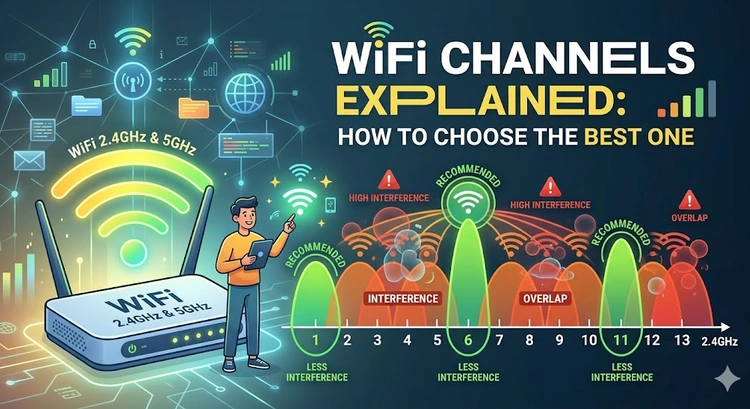
The 2.4 GHz band is divided into 14 channels (13 in most of the world, 11 in North America), each 20 MHz wide but spaced only 5 MHz apart. Because the channels overlap significantly, only channels 1, 6, and 11 are considered truly non-overlapping in the North American regulatory domain. This is why every networking guide hammers on that same trio: if every router in your building sticks to those three, interference stays minimal even when the airwaves are crowded.
The 5 GHz band tells a more generous story. It offers up to 25 non-overlapping 20 MHz channels in the United States, with the option to bond them into 40 MHz, 80 MHz, or even 160 MHz channels for dramatically higher throughput. The trade-off is range: higher frequencies attenuate faster through walls and floors, so a 5 GHz signal that blazes at 600 Mbps next to your router might drop to a trickle two rooms away. Choosing the right band — and the right channel within it — means understanding where your devices live and what they need.
The newer 6 GHz band, introduced with Wi-Fi 6E and expanded further with Wi-Fi 7, adds a massive swathe of fresh, uncrowded spectrum. It supports up to 59 non-overlapping 20 MHz channels in the US, making interference practically a non-issue for now. However, 6 GHz support requires both a compatible router and a compatible device, and the band's shorter range means placement matters even more than on 5 GHz. For most homes in 2026, the 5 GHz band remains the sweet spot of speed and coverage.
Follow these five steps to scan your local airwaves and lock in the least-congested channel for each band.
The table below summarizes the key differences between the three WiFi bands to help you decide which channel range suits each use case in your home.
| Band | Non-Overlapping Channels (US) | Max Channel Width | Typical Range |
|---|---|---|---|
| 2.4 GHz | 3 (ch. 1, 6, 11) | 40 MHz (not recommended) | ~45 m indoors |
| 5 GHz UNII-1 | 4 (36, 40, 44, 48) | 80 MHz | ~25 m indoors |
| 5 GHz UNII-3 | 5 (149, 153, 157, 161, 165) | 80 MHz | ~25 m indoors |
| 5 GHz combined | Up to 25 | 160 MHz | ~20 m indoors |
| 6 GHz (Wi-Fi 6E/7) | Up to 59 | 320 MHz (Wi-Fi 7) | ~15 m indoors |
Most routers offer an "Auto" channel setting that scans on boot and picks the least-congested option. This sounds ideal, but the scan only happens when the router restarts — so if a neighbor's router later moves to the same channel, yours will not adjust until the next reboot. For homes in dense apartment buildings, manually setting a channel and rescanning every few months consistently outperforms the Auto setting.
Even after switching channels, some users continue to experience interference or degraded performance. The most common reason is channel width: if your router is set to use an 80 MHz or 160 MHz wide channel on 5 GHz, it is occupying a much larger chunk of spectrum, which means more potential overlap with other networks even on supposedly non-overlapping center channels. Dropping from 80 MHz to 40 MHz channel width can dramatically reduce interference in dense environments at a modest cost to peak throughput.
Another overlooked factor is DFS (Dynamic Frequency Selection) channels. Channels 52–144 on 5 GHz are DFS channels, meaning your router must vacate them immediately if it detects radar (used by weather stations and air traffic control). Some older client devices — especially older game consoles and IoT gadgets — do not support DFS channels at all and will refuse to connect. If you notice certain devices dropping off your network after a channel change, switching to UNII-1 (channels 36–48) or UNII-3 (channels 149–165) eliminates DFS as a variable entirely. For a broader look at performance issues, our slow WiFi troubleshooting guide covers every angle.
If you manage multiple access points or a mesh network, channel planning becomes a coordination exercise. Adjacent access points should use non-overlapping channels to avoid co-channel interference between your own devices, and backhaul links (the connection between mesh nodes) ideally run on a dedicated channel or band separate from client traffic. Reviewing your WiFi security settings at the same time is also worthwhile, since older security modes can limit negotiated speeds regardless of which channel you choose.
Pro Tip: Schedule a channel re-scan every time the clocks change (twice a year). New neighbors and new routers constantly shift the channel landscape, and a quick check with the WiFi Channel Finder takes under two minutes but can reclaim megabits of lost throughput.
The best 2.4 GHz WiFi channels are 1, 6, and 11 because they are the only three that do not overlap with each other in the North American regulatory domain. To choose among the three, scan your neighborhood with a WiFi analyzer app or our WiFi Channel Finder and pick whichever has the fewest competing networks. If all three are busy, choose the one whose neighbors have the weakest signal strength.
Use 5 GHz for devices that stay close to the router — laptops, streaming sticks, and gaming consoles — because it offers far more non-overlapping channels and significantly higher speeds. Reserve 2.4 GHz for devices far from the router or those that need to pass through multiple walls, since it has roughly twice the range of 5 GHz. Connecting the right device to the right band is often more impactful than any channel change alone.
Yes, switching from a congested channel to a clean one can substantially improve both speed and latency because your router spends less time retransmitting collided packets. The improvement is most dramatic in dense environments like apartment buildings where many routers cluster on the same default channel. Users in detached houses with few neighbors may see little difference since there is less interference to begin with.
On 2.4 GHz, stick to 20 MHz; the band is simply too narrow for wider channels without causing excessive interference. On 5 GHz, 40 MHz is a conservative choice that minimizes interference, while 80 MHz gives the best balance of speed and reliability for most homes. Only use 160 MHz on 5 GHz if you are in a very uncrowded environment and your devices support it.
DFS (Dynamic Frequency Selection) channels are 5 GHz channels (52–144) that are shared with radar systems; your router must immediately switch away if it detects a radar pulse, causing a brief disconnection. They can be excellent choices in areas with no radar activity because fewer consumer routers use them, resulting in less congestion. However, some older client devices do not support DFS, so stick to UNII-1 (36–48) or UNII-3 (149–165) if compatibility with older hardware is a priority.
There is no set schedule, but re-scanning every three to six months is a practical habit since new routers are installed in your vicinity regularly. You should also scan immediately after moving into a new home, after a neighbor mentions getting new networking equipment, or whenever you notice an unexplained drop in WiFi performance. The scan itself takes only a minute or two and can reveal channel conflicts that are impossible to diagnose otherwise.
For authoritative networking standards and specifications, refer to the Internet Assigned Numbers Authority (IANA) or IETF RFC documents.
 |
 |
 |
 |

About Tommy N.
Tommy is the founder of RouterHax and a network engineer with over ten years of experience in home and enterprise networking. He has configured and troubleshot networks ranging from simple home setups to multi-site enterprise deployments, with deep hands-on experience in router configuration, WiFi optimization, and network security. At RouterHax, he oversees editorial direction and covers home networking guides, mesh WiFi system reviews, and practical troubleshooting resources for everyday users.
Search
Popular Tools
Browse Guides
Promotion for FREE Gifts. Moreover, Free Items here. Disable Ad Blocker to get them all.
Once done, hit any button as below
|
|
|
|


