by Tommy N. Updated Apr 23, 2026
Network jitter is one of those invisible culprits behind choppy video calls, skipping audio, and the lag spikes that cost you a kill in your favorite online game. Understanding what network jitter is — and how to fight it — can be the difference between a smooth connection and a frustrating experience every time you go online.

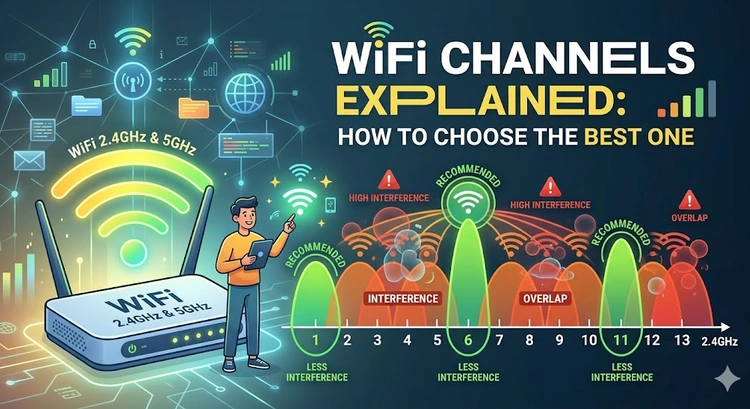
In this guide you will learn exactly what jitter is, how it differs from latency and packet loss, what acceptable jitter levels look like for calls and gaming, and — most importantly — how to reduce it on your home network. If your Wi-Fi has been feeling unreliable, you may also want to read our guide on fixing slow Wi-Fi and learn how to change your Wi-Fi channel to reduce interference that contributes to jitter.

When data travels across the internet, it is broken into small chunks called packets. Ideally, those packets depart at regular intervals and arrive at their destination at equally regular intervals — like buses running on a perfect schedule. Jitter is what happens when that schedule falls apart. It is defined as the variation in the time delay between packets arriving at their destination. A packet that should arrive every 20 ms might instead arrive at 15 ms, then 40 ms, then 12 ms — with no predictable rhythm.
It is critical to distinguish jitter from latency. Latency (also called ping) is the total time it takes a packet to travel from source to destination. Jitter is the inconsistency in that travel time. You can have a high-latency connection that is perfectly stable — a satellite link might have 600 ms of latency but very little jitter — and conversely you can have a low-latency connection riddled with jitter. For real-time applications like voice calls and gaming, jitter is often more damaging than a consistently high ping.
Jitter originates from several sources inside and outside your home. Network congestion is the most common cause: when a router or switch becomes overloaded, it buffers packets and releases them unevenly. Wi-Fi interference from neighboring networks, microwave ovens, and Bluetooth devices causes the wireless medium to pause and retry transmissions, injecting irregular delays. Hardware limitations in older or budget routers compound the problem because their processors cannot queue and forward packets fast enough under load.
Outside your home, the internet backbone itself can introduce jitter. Packets from your device do not always follow the same route. One packet might hop through three data centers while the next takes a completely different path through five. This routing variability is a natural characteristic of the internet — but it becomes especially noticeable on congested ISP networks during peak hours, typically evenings and weekends when millions of users are simultaneously streaming, gaming, and video-calling.
Follow these steps in order to diagnose your jitter levels and systematically bring them down.
Not all applications tolerate jitter equally. Here is a practical reference table for what jitter levels are considered acceptable, tolerable, and problematic across common use cases.
| Application | Excellent (< X ms) | Acceptable (< X ms) | Problematic (> X ms) |
|---|---|---|---|
| Video Calls (Zoom, Teams) | < 10 ms | < 30 ms | > 50 ms |
| VoIP / Phone Calls | < 10 ms | < 20 ms | > 30 ms |
| Competitive Online Gaming | < 5 ms | < 15 ms | > 30 ms |
| Casual Online Gaming | < 15 ms | < 40 ms | > 60 ms |
| Video Streaming (Netflix, YouTube) | Any | Any | Rarely noticeable |
Every VoIP and video conferencing application uses a jitter buffer — a small reservoir of incoming packets that the application holds briefly before playing them out, smoothing over irregular arrival times. A dynamic jitter buffer automatically adjusts its depth based on observed jitter. The downside is that a larger buffer adds latency: if your jitter is consistently high, the app widens its buffer to compensate, and you will notice a slight delay before the other person's voice comes through. Reducing actual network jitter shrinks the buffer depth needed, which reduces end-to-end call latency as a bonus.
If you have followed the steps above and still experience high jitter, there are several deeper causes to investigate. Router overheating is frequently overlooked: a router running hot will throttle its CPU, slowing packet processing and causing queuing delays that manifest as jitter. Ensure your router has adequate ventilation and is not enclosed in a cabinet. Another common culprit is a faulty or degraded Ethernet cable — even a cable that passes basic connectivity tests can introduce intermittent errors that force retransmissions and create jitter spikes.
Your DNS resolver can also contribute to perceived jitter in games and apps that perform frequent DNS lookups. While DNS does not directly cause network jitter, slow or unreliable DNS responses add irregular delays to connection setup. Switching to a faster public DNS server by following our guide to change DNS on your router can reduce this effect. Additionally, if multiple devices on your network are competing for bandwidth, setting up a guest network to isolate IoT devices and bandwidth-heavy traffic can reduce contention that causes jitter.
At the ISP level, line quality issues — especially on older copper DSL or cable lines — can inject jitter that no router setting will fix. Contact your ISP and ask them to run a line quality test. If you are on a cable connection, request that they check for upstream packet loss, which is a very common source of jitter on coaxial cable networks during peak hours.
Pro Tip: Run our Ping Test tool before and after each change you make so you have objective data on whether the fix actually reduced your jitter — rather than relying on subjective impressions of whether calls or games feel smoother.
For competitive online gaming, jitter below 5 ms is considered excellent, and anything under 15 ms is generally acceptable without noticeable impact on gameplay. Jitter above 30 ms will cause rubber-banding, hit registration problems, and inconsistent response times that put you at a disadvantage. You can measure your current jitter using our Ping Test tool and compare it against these benchmarks.
Ping (latency) is the total round-trip time for a packet to travel from your device to a server and back, measured in milliseconds. Jitter is the variation in that round-trip time across successive packets. You can have a high ping of 80 ms with very stable jitter of 2 ms, which will feel consistent, or a lower ping of 40 ms with jitter of 35 ms, which will feel erratic and unpredictable because response times vary wildly from moment to moment.
Jitter and packet loss are separate issues, but they often share the same root causes — network congestion, poor Wi-Fi signal quality, and overloaded routing hardware. Our Jitter & Packet Loss Estimator shows their combined impact on VoIP, gaming, and streaming quality. Severe jitter can lead to packet loss when a jitter buffer overflows: if packets arrive so irregularly that the buffer cannot accommodate the variation, it will drop packets rather than introduce excessive latency. Fixing the underlying congestion or interference typically improves both jitter and packet loss simultaneously.
In most cases a VPN will increase jitter slightly because it adds an additional hop and encryption overhead to every packet. However, in specific scenarios — particularly if your ISP is throttling gaming or VoIP traffic or routing it inefficiently — a VPN can actually reduce jitter by routing your traffic through a more stable path. Use our VPN Protocol Comparison tool to understand the latency and overhead trade-offs of different VPN protocols before making a choice.
Evening jitter spikes almost always indicate ISP network congestion. Between roughly 7 PM and 11 PM in most regions, internet usage peaks as households stream video, game, and browse simultaneously. This saturates shared infrastructure in your neighborhood and on your ISP's backbone, causing irregular packet delivery. If this pattern is consistent, contact your ISP and report the issue with timestamped jitter measurements — many ISPs have congestion remediation programs and will prioritize upgrades to heavily loaded nodes.
Changing your DNS server does not directly reduce network jitter, because jitter occurs at the packet transport layer and DNS only affects name resolution. However, a slow DNS server can add irregular delays to the initial connection setup for games and applications, which can feel like jitter. Switching to a fast, reliable DNS provider by following our guide to change DNS on your router eliminates this as a contributing factor and reduces overall connection variability.
For authoritative networking standards and specifications, refer to the Internet Assigned Numbers Authority (IANA) or IETF RFC documents.
 |
 |
 |
 |

About Tommy N.
Tommy is the founder of RouterHax and a network engineer with over ten years of experience in home and enterprise networking. He has configured and troubleshot networks ranging from simple home setups to multi-site enterprise deployments, with deep hands-on experience in router configuration, WiFi optimization, and network security. At RouterHax, he oversees editorial direction and covers home networking guides, mesh WiFi system reviews, and practical troubleshooting resources for everyday users.
Search
Popular Tools
Browse Guides
Promotion for FREE Gifts. Moreover, Free Items here. Disable Ad Blocker to get them all.
Once done, hit any button as below
|
|
|
|