by Tommy N. Updated Apr 23, 2026
Every time you load a webpage, stream a video, or send a message, your data is broken into tiny chunks called network packets — and understanding how those packets travel the internet explains nearly everything about how modern networking works. A network packet is the fundamental unit of data transmission across digital networks, carrying a piece of your information from one device to another across potentially thousands of miles in milliseconds.

In this guide, you'll learn exactly what a network packet is, how it's structured, how packets are routed across the internet, and what happens when they get lost or arrive out of order. Whether you're troubleshooting slow Wi-Fi or just curious about what's happening under the hood when you browse the web, understanding packets gives you a mental model that makes every other networking concept click into place. We'll also cover how your router plays a central role in this process — and how you can use that knowledge to optimize your home network.

A network packet is a small, self-contained unit of data that travels across a network. When you request a webpage, your operating system doesn't send the entire file in one massive transmission — instead, it splits the data into hundreds or thousands of individual packets, each typically between 64 bytes and 1,500 bytes in size. Every packet travels independently through the network, possibly taking a completely different route than the packet sent a fraction of a second before it, and they're all reassembled into the original data at the destination.
Every network packet has three main components: the header, the payload, and in some protocols, a trailer. The header is the addressing and control information at the front of the packet — think of it like the envelope of a letter. It contains the source IP address (where the packet came from), the destination IP address (where it's going), the protocol type (TCP, UDP, ICMP, etc.), a sequence number so the receiving device knows how to reassemble the packets in order, a Time to Live (TTL) value that limits how many hops the packet can make before being discarded, and a checksum used to verify data integrity. The payload is the actual data — a fragment of the HTML, image, video, or message you're transferring.
The concept of packet switching — the technology that makes this possible — was developed in the 1960s as a more resilient alternative to circuit switching (which is how traditional telephone calls work). In circuit switching, a dedicated physical path is established for the duration of a call. Packet switching is far more efficient: multiple packets from many different users can share the same physical wire simultaneously, each one finding its own path through the network based on real-time conditions. This is why the internet is so robust — if one router or cable goes down, packets simply find another route.
Different protocols handle packets in different ways. TCP (Transmission Control Protocol) provides reliable, ordered delivery — it guarantees that every packet arrives and that they're reassembled in the correct sequence, resending any that are lost. UDP (User Datagram Protocol) sacrifices reliability for speed — packets are sent without any guarantee of delivery or ordering, which is why it's used for live video, online gaming, and DNS lookups where a slightly dropped packet is less harmful than added latency. Understanding the difference between TCP and UDP is key to diagnosing network performance issues.
Follow a single packet on its journey from your laptop to a web server to understand the full lifecycle of data on the internet.
Different protocols produce different types of packets optimized for specific use cases. Here's a comparison of the most common packet types you'll encounter on a home network. Our Packet Size Calculator breaks down total frame size including every header, if you need the exact overhead.
| Protocol | Transport | Max Packet Size | Best Use Case |
|---|---|---|---|
| HTTP/HTTPS | TCP | 1,500 bytes (MTU) | Web browsing, file downloads |
| DNS | UDP (TCP for large) | 512 bytes (UDP) / 65,535 bytes (TCP) | Domain name resolution |
| Video Streaming | UDP / QUIC | 1,200–1,500 bytes | Netflix, YouTube, live video |
| Online Gaming | UDP | Varies (typically <500 bytes) | Real-time game state updates |
| VoIP / Video Calls | UDP / RTP | 160–320 bytes | Zoom, Teams, phone calls |
The Maximum Transmission Unit (MTU) is the largest packet size your network can transmit without fragmenting it. Our MTU Calculator works out the optimal MTU and MSS for Ethernet, PPPoE, and VPN connections. For most Ethernet and Wi-Fi networks, MTU is 1,500 bytes. If your router or ISP connection uses a smaller MTU (common with PPPoE DSL connections, which typically have an MTU of 1,492 bytes), packets larger than that limit get fragmented into smaller pieces — which adds overhead and can cause issues with some applications. If you notice websites loading slowly but small requests like DNS lookups feel fast, a misconfigured MTU is a common culprit worth investigating.
Most home network problems — buffering video, laggy games, dropped calls — come down to one of three issues with packets: loss, latency, or reordering. Packet loss occurs when packets never reach their destination, forcing TCP to retransmit them and causing noticeable slowdowns. Latency is the time it takes for a packet to travel from source to destination; high latency makes everything feel sluggish even if no packets are actually lost. Jitter is variability in latency — packets arriving at inconsistent intervals — which is especially disruptive for voice and video calls.
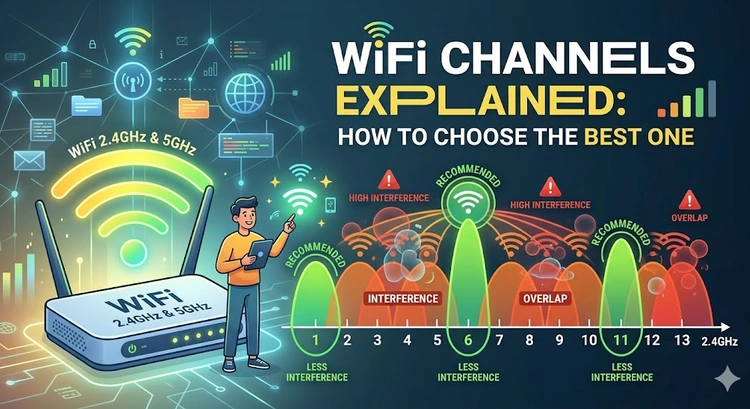
Most packet loss on home networks originates from Wi-Fi interference, not from the internet connection itself. Radio frequency congestion — especially on the crowded 2.4 GHz band — causes routers to retransmit Wi-Fi frames, which translates directly into higher latency and perceived packet loss at the application layer. Switching to the 5 GHz band or changing your Wi-Fi channel to a less congested one can dramatically reduce this problem. You should also check whether your router's firmware is up to date, since manufacturers regularly release fixes for packet handling bugs — see our guide on updating router firmware.
When diagnosing packet loss, start by isolating where in the path the problem occurs. If you experience loss on a wired connection directly to your router, the issue is likely with your ISP or modem. If you only see it on Wi-Fi, it's almost certainly a wireless interference issue. You can use our ping test tool to measure round-trip time and identify loss to different endpoints.
Pro Tip: Use our ping test tool to run continuous pings to both your router's local IP and an external server like 8.8.8.8. If you see loss only to external addresses but not to your router, the problem is your ISP — call them with that evidence in hand. If you see loss even to your router, your Wi-Fi or local network is the culprit.
A network packet is a small chunk of data — typically between 64 and 1,500 bytes — that travels independently across a network from a sender to a receiver. Every file, webpage, video, or message you send over the internet is first broken into these packets, which are then reassembled into the original data at the destination. Each packet carries a header containing addressing and control information, plus a payload containing the actual data fragment.
The maximum size of a packet on most Ethernet and Wi-Fi networks is 1,500 bytes, defined by the Maximum Transmission Unit (MTU). In practice, many packets are much smaller — a DNS query packet might be under 100 bytes, while a packet carrying compressed video data will typically be close to the 1,500-byte maximum. Some specialized networks (like data center connections) support "jumbo frames" with MTUs of up to 9,000 bytes to reduce overhead.
For TCP connections (used by web browsing, file transfers, and most applications), the sender detects the loss after a timeout or after receiving duplicate acknowledgments, then retransmits the missing packet. This retransmission causes a noticeable pause — typically 200ms to several seconds depending on the connection's round-trip time and how busy the network is. For UDP connections (used by gaming, video calls, and streaming), lost packets are simply discarded and the application must handle the gap itself, which is why you see video artifacts or hear audio glitches during poor network conditions.
A packet operates at Layer 3 (the Network layer) of the OSI model and contains IP addressing information. A frame operates at Layer 2 (the Data Link layer) and contains MAC address information used to deliver data between devices on the same local network segment. When a packet travels across your network, it gets encapsulated inside a frame for each hop — the frame's MAC addresses change at every router, while the packet's IP addresses remain the same end-to-end. Understanding what an IP address is helps clarify the distinction between these two layers.
Loading a modern webpage typically requires anywhere from a few hundred to several thousand packets. A simple page might involve 50–200 packets just for the HTML, CSS, and JavaScript, plus hundreds more to load images, fonts, and third-party scripts. A complex page with high-resolution images or video embeds can easily generate 5,000–10,000 packets in the first few seconds of loading. You can observe this yourself using your browser's developer tools (F12) — the Network tab shows every request and the amount of data transferred.
Yes — on unencrypted connections, packets can be read or modified by anyone with access to the network path, including attackers on the same Wi-Fi network. This is why HTTPS is essential: it encrypts the packet payloads using TLS so that even if packets are intercepted, their contents are unreadable without the decryption key. Using strong Wi-Fi security settings like WPA3 also encrypts packets over your wireless link, protecting them from being captured by nearby attackers.
For authoritative networking standards and specifications, refer to the Internet Assigned Numbers Authority (IANA) or IETF RFC documents.
 |
 |
 |
 |

About Tommy N.
Tommy is the founder of RouterHax and a network engineer with over ten years of experience in home and enterprise networking. He has configured and troubleshot networks ranging from simple home setups to multi-site enterprise deployments, with deep hands-on experience in router configuration, WiFi optimization, and network security. At RouterHax, he oversees editorial direction and covers home networking guides, mesh WiFi system reviews, and practical troubleshooting resources for everyday users.
Search
Popular Tools
Browse Guides
Promotion for FREE Gifts. Moreover, Free Items here. Disable Ad Blocker to get them all.
Once done, hit any button as below
|
|
|
|