
by Priya Nakamura Updated Apr 23, 2026
Knowing exactly what's flowing through your home network can mean the difference between a fast, secure connection and one that's silently being abused. Learning how to monitor network traffic on your router gives you real visibility into every device, every connection, and every byte of data passing through your gateway to the internet.
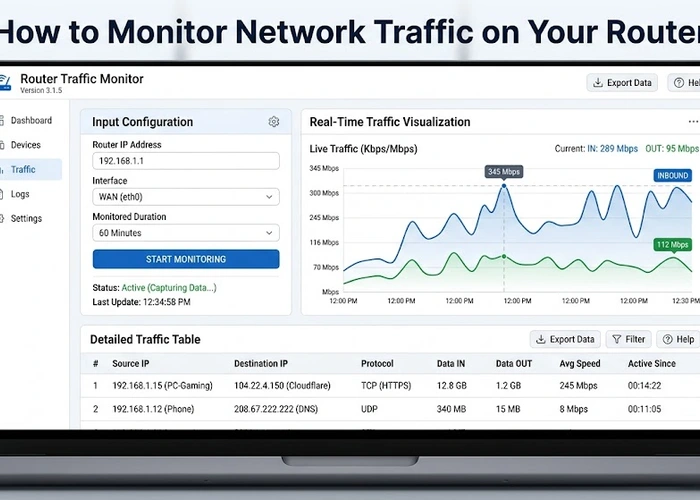
In this guide you will learn the best methods for monitoring network traffic at the router level, how to read the data you collect, and what to do when something looks suspicious. Whether you're troubleshooting slow Wi-Fi or trying to check who is on your Wi-Fi, router-level traffic monitoring is the most powerful tool available to you.

Every time a device on your network loads a webpage, streams video, or sends an email, it generates network traffic. That traffic flows through your router as packets — small chunks of data that carry a source address, a destination address, and a payload. Your router sees every single one of these packets because it acts as the gatekeeper between your local network and the internet.
Router traffic monitoring is the process of capturing, logging, or summarizing those packet flows so you can understand what is happening on your network. At the most basic level, your router's built-in admin interface shows you bandwidth usage per device. At a more advanced level, protocols like NetFlow or sFlow allow your router to export detailed flow records to a dedicated monitoring server, giving you per-application and per-connection visibility.
Most consumer routers record basic traffic statistics in memory — total bytes sent and received per device, active connections, and sometimes DNS queries. This data is ephemeral; it disappears when the router reboots. Enterprise-grade routers and open-source firmware like DD-WRT or OpenWrt add persistent logging, SNMP support, and flow export capabilities that keep historical records you can analyze over time. Our SNMP OID Lookup covers 40+ of the OIDs these dashboards actually poll.
Understanding the difference between bandwidth monitoring (how much data is flowing) and deep packet inspection (what that data contains) is crucial. Bandwidth monitoring is privacy-respecting and works on all traffic including encrypted HTTPS. Deep packet inspection can reveal more detail but is generally only practical on unencrypted traffic and raises significant privacy considerations when used on a shared network.
Follow these steps from the simplest built-in method to more advanced options, choosing the level of detail that fits your needs.
Different monitoring approaches offer different tradeoffs between ease of setup, detail level, cost, and impact on performance. Use this table to choose the right method for your situation.
| Method | Difficulty | Data Detail | Cost |
|---|---|---|---|
| Built-in router admin panel | Easy | Per-device bandwidth totals | Free |
| Router DNS logging | Easy–Medium | All domain lookups per device | Free |
| Pi-hole on local network | Medium | DNS queries & ad-block stats | ~$15 hardware |
| OpenWrt / DD-WRT firmware | Medium–Hard | Per-IP flow data, packet logs | Free (if compatible) |
| NetFlow collector (ntopng) | Hard | Full per-flow records, historical | Free–$$$ |
Before investing time in complex tools, check whether your router already has a monthly data cap tracker. Netgear's Traffic Meter and ASUS's Traffic Analyzer both record cumulative monthly usage per device with zero configuration. Log in, navigate to the traffic section, and sort by bytes transferred — the highest consumers almost always explain mystery slowdowns or unexpected bill overages instantly.
Even with good tools in place, interpreting traffic data can be confusing. The most common issue home users encounter is identifying which device generated a particular traffic spike. Cross-reference the IP address shown in your traffic logs with the DHCP client table in your router admin panel — this maps IP addresses to device MAC addresses and hostnames. Setting up static IP addresses for your key devices makes this correlation permanent and reliable.
Another frequent problem is seeing large volumes of traffic to unfamiliar IP addresses or domain names. Before assuming something is malicious, use our IP Lookup tool and DNS Lookup tool to resolve those addresses. Cloud services like Microsoft 365, Apple iCloud, and Google Drive regularly transfer gigabytes of data in the background, and their IP ranges are not always intuitive. If an IP resolves to a known cloud provider, it is almost certainly legitimate background sync activity.
Performance impact is a genuine concern when enabling detailed logging on consumer routers. Enabling every available log level simultaneously can consume CPU and memory, causing packet loss or latency on low-powered hardware. Start with DNS logging only — it is lightweight and highly informative — then add flow logging only if you need to investigate a specific problem.
Pro Tip: Run a baseline traffic capture during a quiet period (overnight with all devices idle) and save it. Future captures compared against this baseline immediately reveal new applications, unauthorized devices, or malware beaconing — use our Ping Test tool to correlate latency spikes with the traffic volumes you observe.
Yes — most modern routers include a built-in traffic monitor accessible through the admin panel at your router's IP address. Brands like ASUS, Netgear, and TP-Link all offer per-device bandwidth summaries without any additional software. The data is limited to totals and real-time usage, but it is enough to identify the heaviest users on your network.
Basic bandwidth monitoring has negligible impact on internet speed since it only counts packets rather than storing their contents. Enabling full packet capture (tcpdump, Wireshark) on the router itself can consume significant CPU on low-powered consumer hardware and may cause latency or dropped packets. For ongoing monitoring, stick to flow-based methods like NetFlow or DNS logging, which are far less resource-intensive.
With DNS logging enabled, you can see every domain name that any device looks up, which reveals the websites and services being accessed even over HTTPS. DNS query logs do not show the specific pages visited or any content — just the domain names. For more detail on individual sites, tools like Pi-hole or a transparent proxy are needed, though these work best on unencrypted traffic.
Start by finding the device's IP address in your traffic logs, then cross-reference it with the DHCP table in your router admin panel to find its MAC address and hostname. Use our MAC Address Lookup tool to identify the device manufacturer from the first six digits of the MAC address. If the device is unauthorized, change your Wi-Fi password immediately to disconnect it.
Traffic monitoring shows you raw data — which devices are connecting to which destinations and how much bandwidth they consume. Parental controls actively block or schedule access to specific categories of content or websites. Many routers combine both features, but they serve different purposes: monitoring is passive and informational, while parental controls are active and restrictive.
You do not need special hardware for basic monitoring — any router with a web admin interface provides some level of traffic visibility. For advanced features like NetFlow export, persistent logging, or per-application analysis, routers running open-source firmware such as OpenWrt offer the most capability. Alternatively, placing a dedicated device like a Raspberry Pi running ntopng between your modem and router achieves professional-grade monitoring on any router.
For authoritative networking standards and specifications, refer to the Internet Assigned Numbers Authority (IANA) or IETF RFC documents.
 |
 |
 |
 |

About Priya Nakamura
Priya Nakamura is a telecommunications engineer and networking educator with a Master degree in Computer Networks and a background in ISP infrastructure design and management. Her experience spans both the technical architecture of broadband networks and the practical challenges home users face when configuring routers, managing wireless coverage, and understanding connectivity standards. At RouterHax, she covers WiFi standards and protocols, networking concepts, IP addressing, and network configuration guides.
Search
Popular Tools
Browse Guides
Promotion for FREE Gifts. Moreover, Free Items here. Disable Ad Blocker to get them all.
Once done, hit any button as below
|
|
|
|


