
Modern routers broadcast on multiple frequency bands — 2.4 GHz, 5 GHz, and now 6 GHz with WiFi 6E and WiFi 7. Each band has distinct strengths: 2.4 GHz offers the best range and wall penetration, 5 GHz delivers higher speeds at medium range, and 6 GHz provides the fastest speeds with the least interference at close range. This WiFi Frequency Picker asks a series of questions about your device, usage, and environment to recommend the optimal band. Pair the recommendation with our WiFi Channel Finder to select the best channel within your chosen band.
1. What type of device are you connecting?
2. How far is the device from the router?
3. How many walls/floors are between the device and router?
4. What is the primary use for this device?
5. Does your router support WiFi 6E (6 GHz band)?
6. How congested is your WiFi environment?
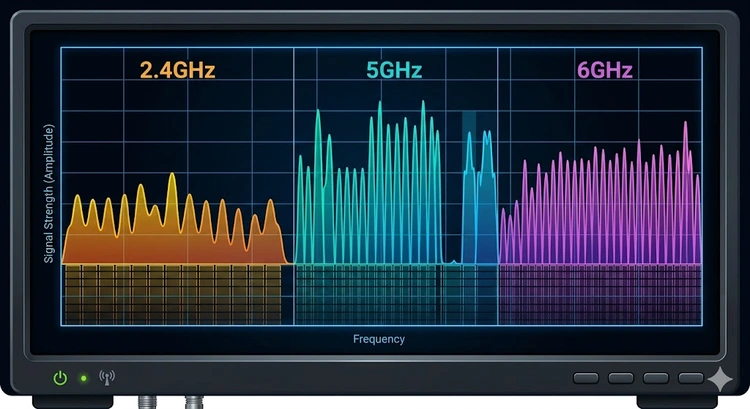
WiFi operates on unlicensed radio spectrum allocated by government agencies like the FCC (US) and ETSI (Europe). The three primary bands used by modern WiFi are 2.4 GHz, 5 GHz, and 6 GHz. Each band is a range of frequencies divided into channels. Lower frequencies travel farther and penetrate obstacles better; higher frequencies carry more data but have shorter range. Understanding these trade-offs is the key to optimizing your wireless network.
| Property | 2.4 GHz | 5 GHz | 6 GHz |
|---|---|---|---|
| Frequency range | 2.400-2.4835 GHz | 5.150-5.850 GHz | 5.925-7.125 GHz |
| Available bandwidth | 83.5 MHz | 500 MHz | 1200 MHz |
| Non-overlapping 20 MHz channels | 3 | 25 | 59 |
| Max channel width | 40 MHz | 160 MHz | 320 MHz |
| Indoor range | 45 m (150 ft) | 15 m (50 ft) | 10 m (33 ft) |
| Wall penetration | Good | Fair | Poor |
| Interference from non-WiFi | High (Bluetooth, microwaves) | Low (DFS radar) | Very low |
| WiFi standard required | 802.11b/g/n/ax | 802.11a/n/ac/ax | 802.11ax (WiFi 6E) / 802.11be |
The 2.4 GHz band is your best choice when range and wall penetration matter more than speed. Its longer wavelength (12.5 cm) diffracts around furniture and passes through drywall, wood, and even brick with relatively little loss. This makes 2.4 GHz ideal for devices that are far from the router, in different rooms, or on different floors. Smart home devices like thermostats, smart plugs, door sensors, and security cameras almost always connect on 2.4 GHz because they need reliable connectivity at any distance but require minimal bandwidth (usually under 1 Mbps).
The downside of 2.4 GHz is congestion. With only three non-overlapping channels (1, 6, and 11), dense environments like apartment buildings can have dozens of networks competing for the same spectrum. Additionally, Bluetooth, baby monitors, cordless phones, and microwave ovens all operate near 2.4 GHz and cause interference. Use our WiFi Channel Finder to pick the least crowded channel.
The 5 GHz band is the workhorse of modern WiFi. With 25 non-overlapping channels and support for channel widths up to 160 MHz, it delivers significantly higher throughput than 2.4 GHz. For devices within 15 meters (50 feet) of the router with no more than 1-2 walls in between, 5 GHz is almost always the better choice. It is ideal for laptops, gaming consoles, streaming devices, and smartphones used for video calls or 4K streaming.
The 5 GHz band also suffers far less from non-WiFi interference. The only shared users are weather and military radar on DFS channels (52-144), which may cause brief channel switches. For maximum stability, stick to non-DFS channels: 36-48 and 149-165. If you want to understand channel width trade-offs, check our Channel Width Calculator.
The 6 GHz band, introduced with WiFi 6E in 2021, is the newest and least congested option. With 1200 MHz of spectrum — more than double the entire 5 GHz band — it offers 59 non-overlapping 20 MHz channels or up to 7 ultra-wide 160 MHz channels. Only WiFi 6E and WiFi 7 devices can use this band, which means legacy devices cannot cause interference. The result is the fastest, cleanest WiFi experience available today.
The trade-off is range. At 6 GHz, wall attenuation is significant — a single concrete wall can reduce the signal by 18+ dB. The 6 GHz band works best for high-performance devices in the same room as the router or access point. For coverage throughout a home, you will still need 2.4 GHz and 5 GHz as fallback bands.
Most modern tri-band routers support band steering, which automatically directs each device to the optimal frequency band. The router evaluates signal strength, device capabilities, and band congestion, then steers capable devices to 5 GHz or 6 GHz while keeping IoT devices on 2.4 GHz. Band steering works best when all bands share the same SSID name. If you prefer manual control, you can create separate SSIDs for each band — for example, "HomeWiFi" for 5 GHz and "HomeWiFi-2G" for 2.4 GHz. Check your router's documentation or log in at 192.168.1.1 to configure band steering.
Note: Not all devices support all bands. Older laptops and phones may only support 2.4 GHz. Most devices from 2015 onward support both 2.4 and 5 GHz. Only devices manufactured after 2021 with WiFi 6E chipsets support 6 GHz. Check your device specifications before assigning it to a specific band.
Pro Tip: If you have a tri-band router (2.4 + 5 + 6 GHz), connect your highest-bandwidth devices like 4K streaming boxes and gaming PCs to the 6 GHz band, use 5 GHz for laptops and phones, and reserve 2.4 GHz exclusively for IoT devices and smart home sensors. This separation prevents slow IoT devices from competing for airtime with bandwidth-hungry clients. Verify your setup with a speed test on each band to confirm the expected performance difference.
Key Takeaways
For phones used within the same room or one room away from the router, use 5 GHz for faster speeds and lower latency. If you frequently move throughout your home and need consistent connectivity in every room, 2.4 GHz provides better coverage. Most modern phones support both bands simultaneously and can switch automatically if band steering is enabled.
This is band steering or client roaming at work. Your router or device detects that signal quality has changed — as you move farther from the router, 5 GHz signal weakens faster, prompting a switch to 2.4 GHz. This is normal and beneficial behavior. If the switching is disruptive, you can create separate SSIDs for each band and manually connect to the one you prefer.
If you have WiFi 6E or WiFi 7 devices and use them near the router for bandwidth-intensive tasks (4K/8K streaming, VR gaming, large file transfers), 6 GHz provides a noticeable improvement. The band is essentially empty since only the newest devices can use it. For typical web browsing or if your devices are far from the router, 5 GHz is sufficient and 6 GHz will not help.
Yes. Tri-band routers broadcast on 2.4, 5, and 6 GHz simultaneously. Each band operates independently, so a device on 6 GHz does not compete with devices on 2.4 GHz. This is one of the biggest advantages of tri-band routers — they effectively triple the total available bandwidth compared to a single-band router.
Most smart home devices (smart plugs, sensors, doorbells, basic cameras) only support 2.4 GHz because their chipsets are designed for low cost and low power, not high throughput. Some newer smart home devices like WiFi 6 security cameras do support 5 GHz. Always check the device specifications before purchasing. If a device only supports 2.4 GHz, make sure your router broadcasts a 2.4 GHz SSID that the device can connect to.
 |
 |
 |
 |

About Tommy N.
Tommy is the founder of RouterHax and a network engineer with 10+ years of experience in home and enterprise networking. He specializes in router configuration, WiFi optimization, and network security. When not writing guides, he's testing the latest mesh WiFi systems and helping readers troubleshoot their home networks.
Search
Popular Tools
Browse Guides
Promotion for FREE Gifts. Moreover, Free Items here. Disable Ad Blocker to get them all.
Once done, hit any button as below
|
|
|
|