
Channel width is one of the most important WiFi settings that most people never touch. A wider channel carries more data per transmission — doubling channel width roughly doubles throughput — but it also consumes more of the available spectrum, increasing the chance of interference from neighboring networks. This Channel Width Calculator shows you the theoretical throughput, number of available non-overlapping channels, and interference risk for each channel width option on your selected band. Use it alongside the WiFi Channel Finder to pick both the optimal width and channel for your environment.
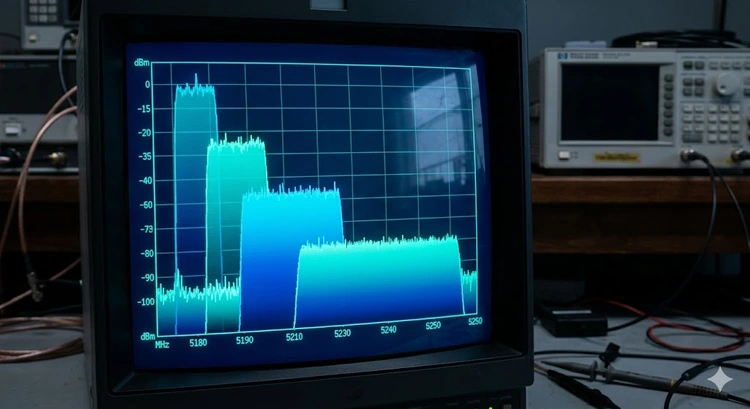
Channel width (also called channel bandwidth) is the amount of radio spectrum a WiFi channel occupies, measured in megahertz (MHz). Standard WiFi channels are 20 MHz wide. Through a technique called channel bonding, routers can combine adjacent 20 MHz channels into wider channels — 40 MHz (two channels), 80 MHz (four channels), 160 MHz (eight channels), or 320 MHz (sixteen channels on WiFi 7). Each doubling of channel width roughly doubles the maximum data rate because more radio spectrum is available to carry data.
Think of channel width like road lanes. A 20 MHz channel is a single lane road. A 40 MHz channel is a two-lane road — double the traffic capacity. An 80 MHz channel is a four-lane highway. The wider the road, the more cars (data) can travel simultaneously. However, wider roads take up more space in the neighborhood (spectrum), leaving less room for others.
| Width | 2.4 GHz | 5 GHz | 6 GHz | Channels Consumed |
|---|---|---|---|---|
| 20 MHz | Supported | Supported | Supported | 1 |
| 40 MHz | Supported* | Supported | Supported | 2 |
| 80 MHz | Not available | Supported | Supported | 4 |
| 160 MHz | Not available | Supported | Supported | 8 |
| 320 MHz | Not available | Not available | WiFi 7 only | 16 |
*40 MHz on 2.4 GHz is technically supported by 802.11n and later, but it consumes two of the three non-overlapping channels, leaving only one for all other networks. In any environment with neighbors, 40 MHz on 2.4 GHz causes severe interference and is not recommended. The Wi-Fi Alliance recommends 20 MHz on 2.4 GHz in shared environments.
The theoretical maximum throughput of a WiFi connection depends on channel width, the number of spatial streams (MIMO antennas), and the WiFi standard's modulation scheme. Here are the maximum PHY rates for common configurations:
| Standard | 20 MHz (1SS) | 40 MHz (1SS) | 80 MHz (1SS) | 160 MHz (1SS) |
|---|---|---|---|---|
| WiFi 4 (802.11n) | 72 Mbps | 150 Mbps | N/A | N/A |
| WiFi 5 (802.11ac) | 87 Mbps | 200 Mbps | 433 Mbps | 867 Mbps |
| WiFi 6 (802.11ax) | 143 Mbps | 287 Mbps | 601 Mbps | 1201 Mbps |
| WiFi 7 (802.11be) | 172 Mbps | 344 Mbps | 720 Mbps | 1441 Mbps |
Multiply these values by the number of spatial streams — a 2x2 MIMO router on WiFi 6 at 80 MHz delivers up to 1201 Mbps (601 x 2). Real-world throughput is typically 50-70% of the theoretical maximum due to protocol overhead, retransmissions, and shared airtime.
Wider channels deliver more speed but occupy more spectrum, which increases the probability of interference. In a dense apartment building with dozens of visible networks, an 80 MHz channel on 5 GHz occupies four times as many frequencies as a 20 MHz channel, making it four times more likely to overlap with a neighbor's channel. The IEEE 802.11 standard includes mechanisms like RTS/CTS to manage shared spectrum, but these add overhead that reduces the throughput advantage of wider channels.
In low-density environments (detached houses, rural areas), wide channels are a clear win. In high-density environments (apartments, offices), narrower channels often deliver better real-world performance because there is less contention. Use our WiFi Channel Finder to see how congested your chosen band is before selecting a channel width.
Note: Your router and all client devices must support the selected channel width. A WiFi 5 client connected to a WiFi 6 router at 160 MHz will only get the WiFi 5 rate. The connection always operates at the lowest common capability. Check device specs to confirm support.
Pro Tip: Most routers default to "Auto" channel width, which typically selects 80 MHz on 5 GHz. This is a reasonable default for most homes. Only override it if you are in a very dense environment (switch to 40 MHz) or a very quiet one (try 160 MHz). After changing channel width, run a speed test to measure the actual impact — wider is not always faster in congested environments.
Key Takeaways
Use 80 MHz for the best balance of speed and reliability in most homes. Switch to 160 MHz only if you are in a low-density environment with few neighboring WiFi networks, you need maximum throughput (e.g., for NAS backups or high-resolution streaming), and your client devices support 160 MHz. In congested areas, 160 MHz will likely perform worse than 80 MHz due to increased interference.
Technically yes, but practically no. The 2.4 GHz band has only three non-overlapping 20 MHz channels (1, 6, 11). Using 40 MHz consumes two of them, leaving only one for all other networks. In any shared environment, 40 MHz on 2.4 GHz causes more interference problems than the extra throughput is worth. Stick to 20 MHz on 2.4 GHz.
Most routers default to "Auto" channel width, which typically selects 80 MHz on 5 GHz and 20 MHz on 2.4 GHz. You can check and change this in your router's wireless settings. Log in at 192.168.1.1 and look for "Channel Width," "Bandwidth," or "HT Mode" in the advanced wireless settings.
Slightly. Wider channels spread the same transmit power across more spectrum, which reduces the signal energy per hertz. This can marginally reduce range, but the effect is small compared to factors like distance, walls, and frequency band. The bigger concern with wide channels at range is that the noise floor increases proportionally to bandwidth, which can reduce the signal-to-noise ratio and force a lower data rate.
80+80 MHz (also called non-contiguous 160 MHz) combines two separate 80 MHz channels that do not need to be adjacent. This provides the same 160 MHz bandwidth but with more flexibility in channel selection — useful when two adjacent 80 MHz blocks are not available. Not all routers and clients support 80+80; many only support contiguous 160 MHz. WiFi 7 introduces preamble puncturing, which is a more advanced approach to using non-contiguous spectrum.
OFDMA (Orthogonal Frequency Division Multiple Access), introduced in WiFi 6, subdivides a wide channel into resource units (RUs) that can be assigned to different clients simultaneously. This means a 160 MHz channel can serve multiple clients at once, each on a portion of the spectrum. OFDMA makes wide channels more efficient in multi-device environments because clients no longer need to wait for the entire channel to be free before transmitting.
 |
 |
 |
 |

About Tommy N.
Tommy is the founder of RouterHax and a network engineer with 10+ years of experience in home and enterprise networking. He specializes in router configuration, WiFi optimization, and network security. When not writing guides, he's testing the latest mesh WiFi systems and helping readers troubleshoot their home networks.
Search
Popular Tools
Browse Guides
Promotion for FREE Gifts. Moreover, Free Items here. Disable Ad Blocker to get them all.
Once done, hit any button as below
|
|
|
|