
by Priya Nakamura Updated Apr 23, 2026
If websites are loading outdated content, you're getting "site not found" errors after a DNS change, or you simply want to troubleshoot a network problem, knowing how to flush your DNS cache on Windows, Mac, and Linux is one of the most useful skills you can have. The DNS cache stores recent lookups so your computer can resolve domain names faster — but when those records go stale, they cause more problems than they solve.

In this guide you'll learn exactly what the DNS cache is, why flushing it fixes connectivity issues, and the precise commands to clear it on every major operating system. Understanding DNS is closely related to understanding how your router handles name resolution — if you want background on that side of things, see our guide on how to change DNS on your router and our primer on what an IP address is.
Every time your computer visits a website, it asks a DNS server to translate a human-readable domain name like example.com into a numeric IP address like 93.184.216.34. That lookup takes a small but measurable amount of time, so your operating system stores the result locally in a DNS cache — a temporary table of domain-to-IP mappings. The next time you visit the same site, your computer skips the network lookup entirely and reads the answer from that local cache, making the connection noticeably faster.
The problem arises because every DNS record has a Time to Live (TTL) value — an expiry timer set by the domain owner — but your OS doesn't always honour it perfectly. When a website migrates to a new server, changes its IP address, or your network switches DNS providers, the old cached entry can linger long after it should have expired. The result is your browser trying to connect to an IP address that no longer hosts the site you want, producing errors ranging from "ERR_NAME_NOT_RESOLVED" in Chrome to a generic "Safari can't connect to the server" message.
Malware is another reason records go bad. Some attacks — known as DNS poisoning or DNS spoofing — inject fraudulent entries into your cache so that legitimate domain names silently redirect you to malicious servers. Flushing the cache removes any poisoned entries and forces your computer to fetch fresh, authoritative records from upstream DNS servers. It's a quick defensive step worth taking any time you suspect something unusual about where a site is being routed.
Finally, developers and sysadmins flush the DNS cache routinely when testing domain migrations, SSL certificate deployments, or CDN configuration changes. Without clearing the cache, your own machine may keep serving old records even while the rest of the internet already sees the updated DNS. A flush guarantees you're seeing exactly what a first-time visitor would see.
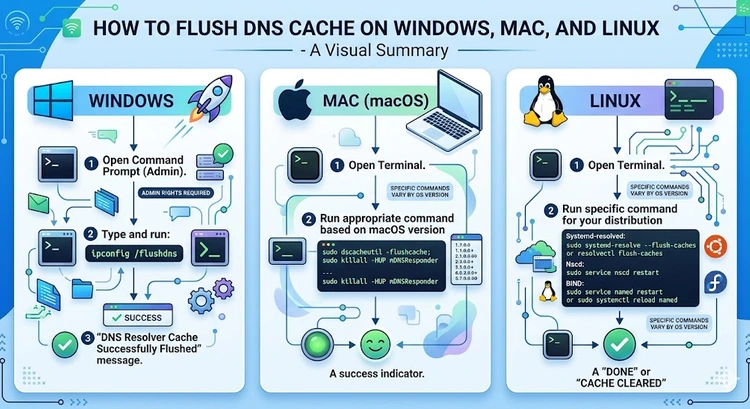
Follow the steps below for your operating system — each procedure takes under a minute and requires no special software.
cmd, then right-click Command Prompt and choose Run as administrator. Elevation is required because modifying the DNS resolver cache is a privileged operation. If you skip this step the command will appear to run but may not fully clear all cached entries.ipconfig /flushdns and press Enter. You should see the confirmation message: "Successfully flushed the DNS Resolver Cache." You can also run ipconfig /displaydns before and after to verify the cache was cleared. On Windows 11 and Windows 10, this single command handles the entire resolver cache.sudo dscacheutil -flushcache; sudo killall -HUP mDNSResponder. On macOS Monterey (12) and Big Sur (11), the same two-part command applies. Older versions like Catalina (10.15) and Mojave (10.14) use just: sudo killall -HUP mDNSResponder.sudo systemd-resolve --flush-caches. To confirm it worked, run sudo systemd-resolve --statistics and look for the "Current Cache Size" field dropping to zero.nscd (Name Service Cache Daemon) instead of systemd-resolved; clear it with sudo systemctl restart nscd. If your machine runs dnsmasq (common on Raspberry Pi OS and some Ubuntu Server setups), use sudo systemctl restart dnsmasq. If none of these services are installed, your Linux system likely has no local DNS cache at all and resolves every query live — no flush needed.Use this reference table to find the exact command for your platform without searching through release notes.
| Operating System | Version | Command | Requires Elevation? |
|---|---|---|---|
| Windows | 10, 11 | ipconfig /flushdns | Yes (Run as Administrator) |
| macOS | Ventura, Sonoma, Sequoia (13–15) | sudo dscacheutil -flushcache; sudo killall -HUP mDNSResponder | Yes (sudo) |
| macOS | Monterey, Big Sur (11–12) | sudo dscacheutil -flushcache; sudo killall -HUP mDNSResponder | Yes (sudo) |
| Linux | Ubuntu / Debian / Fedora (systemd-resolved) | sudo systemd-resolve --flush-caches | Yes (sudo) |
| Linux | nscd-based distros | sudo systemctl restart nscd | Yes (sudo) |
Before and after running ipconfig /flushdns, run ipconfig /displaydns in the same Command Prompt window. The output should go from a long list of cached domain entries to a near-empty result. If entries still appear immediately after flushing, make sure you opened Command Prompt as Administrator — a regular prompt will silently fail to clear all records.
Flushing the OS-level DNS cache is often the first fix people try — and it works a surprising amount of the time — but it's not a silver bullet. If you still can't reach a site after flushing, the stale record may be living somewhere else in the resolution chain: your browser, your router, or your ISP's recursive resolver. Start by checking whether the site is actually reachable from outside your network using our DNS Lookup tool, which queries authoritative nameservers directly and bypasses any local caching entirely.
Browsers maintain their own internal DNS cache that sits above the OS cache. In Chrome, navigate to chrome://net-internals/#dns and click Clear host cache. In Firefox, open about:config, search for network.dnsCacheExpiration, and temporarily set it to 0, then reload the page and restore it. Edge and Brave also expose a similar page at edge://net-internals/#dns. Many users flush the OS cache but forget the browser cache and assume flushing didn't work — always clear both.
If the problem persists after clearing both caches, your router itself may be holding a stale record. Most consumer routers cache DNS responses to speed up queries for the whole household. A quick router reboot usually clears this cache. If you're seeing widespread DNS issues across multiple devices, it may be worth switching to a faster or more reliable DNS provider — our guide on changing DNS on your router walks you through the process.
nslookup example.com (Windows/Linux) or dig example.com (Mac/Linux) to confirm what IP address your system is resolving to after the flushkillall -HUP mDNSResponder returns "No matching processes belonging to you were found," try prepending sudo — mDNSResponder runs as a system process, not your user accountPro Tip: Use our DNS Lookup tool to check the current live DNS records for any domain before and after flushing. If the tool shows the correct IP but your browser still goes to the wrong server, you know the problem is definitely in your local or browser cache — not the DNS records themselves.
There's no set schedule — flush your DNS cache reactively when you experience specific symptoms: a website that used to work now throws an error, a recently migrated site still points to its old IP, or you suspect DNS-based malware redirection. Flushing too aggressively has a minor performance cost (every domain lookup goes back to the network) but causes no lasting harm. Most home users will do this a handful of times per year at most.
No — the DNS cache is completely separate from your browser's history, cookies, saved passwords, and bookmarks. It contains only a temporary table of domain name-to-IP-address mappings, nothing personal. Flushing it is entirely safe and has no effect on any stored credentials or browsing data.
Sometimes — this Chrome error means your computer couldn't resolve the domain at all, which can happen when a cached entry has gone stale or corrupt. Flushing the DNS cache is one of the first things to try. If the error persists after flushing, check that the domain actually exists using our DNS Lookup tool, and verify your network connection is working correctly.
Modern macOS splits DNS caching responsibilities between two components: dscacheutil handles the user-space cache, while mDNSResponder is the system-level DNS service daemon that handles the broader resolver cache. The -flushcache flag clears the first layer, and sending a HUP signal to mDNSResponder (killall -HUP) tells the daemon to reload and discard its cache. Both steps together ensure a complete flush; running only one may leave residual cached entries.
Not always — unlike Windows and macOS, Linux does not enable a system-wide DNS cache by default in all distributions. Whether a cache exists depends on whether systemd-resolved, nscd, or dnsmasq is installed and running on your machine. You can check with systemctl status systemd-resolved or systemctl status nscd. If neither service is active, your Linux system resolves every DNS query live and there is nothing to flush.
Indirectly, yes — if your cache contains a large number of expired or incorrect entries, your system wastes time attempting connections to wrong IP addresses before failing over to a fresh lookup. Clearing those bad entries can noticeably speed up page loads in that specific scenario. For general speed improvements, however, slow Wi-Fi is more often caused by signal interference, router placement, or channel congestion than by DNS caching issues.
ipconfig /flushdns — the entire process takes under 10 secondssudo dscacheutil -flushcache; sudo killall -HUP mDNSRespondersudo systemd-resolve --flush-caches if systemd-resolved is running — otherwise restart nscd or dnsmasqchrome://net-internals/#dns) — the OS flush alone won't clear itFor authoritative networking standards and specifications, refer to the Internet Assigned Numbers Authority (IANA) or IETF RFC documents.
 |
 |
 |
 |

About Priya Nakamura
Priya Nakamura is a telecommunications engineer and networking educator with a Master degree in Computer Networks and a background in ISP infrastructure design and management. Her experience spans both the technical architecture of broadband networks and the practical challenges home users face when configuring routers, managing wireless coverage, and understanding connectivity standards. At RouterHax, she covers WiFi standards and protocols, networking concepts, IP addressing, and network configuration guides.
Search
Popular Tools
Browse Guides
Promotion for FREE Gifts. Moreover, Free Items here. Disable Ad Blocker to get them all.
Once done, hit any button as below
|
|
|
|


