
Calculate the optimal number of wireless access points for your home or office. Enter your floor area, building type, and expected user count to get placement recommendations and coverage estimates.
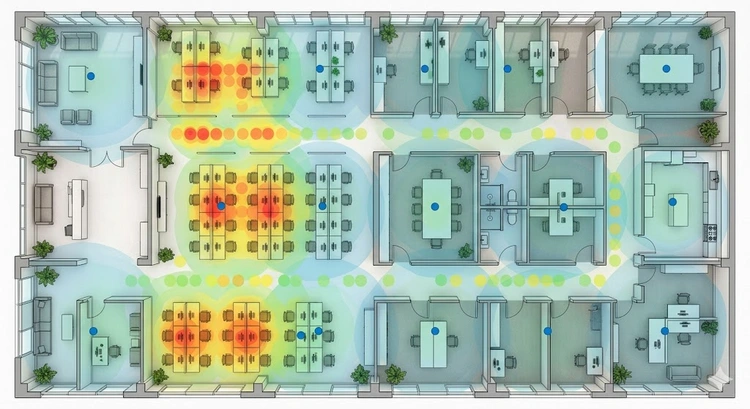
An access point calculator helps you determine how many wireless APs your space needs for reliable WiFi coverage. Rather than guessing and ending up with dead zones, this tool considers your square footage, construction type, and device density to give an accurate recommendation.
Whether you're expanding a home network mapped at 192.168.1.1 or deploying mesh WiFi across a large property, proper AP planning prevents connectivity issues and wasted spending on unnecessary hardware.
Different WiFi standards offer different range and capacity characteristics. The newer the standard, the more devices each AP can handle efficiently:
| WiFi Standard | Indoor Range (typical) | Max Throughput | Users per AP | Best For |
|---|---|---|---|---|
| WiFi 5 (802.11ac) | ~115 ft / 35 m | 3.5 Gbps | ~25 | Budget deployments |
| WiFi 6 (802.11ax) | ~115 ft / 35 m | 9.6 Gbps | ~40 | Most homes and offices |
| WiFi 6E | ~100 ft / 30 m | 9.6 Gbps | ~50 | High-density, low interference |
| WiFi 7 (802.11be) | ~115 ft / 35 m | 46 Gbps | ~60 | Future-proofing, heavy streaming |
Building materials dramatically affect WiFi range. A concrete wall can cut your signal strength in half, requiring more APs for the same area compared to an open floor plan:
| Material | 2.4 GHz Loss (dB) | 5 GHz Loss (dB) | Impact |
|---|---|---|---|
| Drywall | 3-4 | 4-6 | Minimal |
| Wood Door | 3-4 | 5-7 | Low |
| Glass Window | 2-3 | 6-8 | Low-Medium |
| Brick Wall | 6-8 | 10-12 | High |
| Concrete Wall | 10-15 | 15-25 | Very High |
| Metal / Foil | 20+ | 25+ | Near Total Block |
Pro Tip: If your home has concrete or brick interior walls, don't rely on WiFi range alone. Run Ethernet backhaul cables to each AP for maximum performance. A single Cat 6 cable with a PoE switch powers and connects the AP — no extra outlet needed. Use our Bandwidth Calculator to verify your backhaul capacity.
Proper placement matters more than AP quantity. Follow these guidelines when installing access points:
How your APs connect to the main router affects overall performance significantly. While mesh systems offer wireless backhaul convenience, wired backhaul is always faster:
| Backhaul Type | Speed | Reliability | Installation | Cost |
|---|---|---|---|---|
| Ethernet (Cat 6) | Up to 10 Gbps | Excellent | Requires cable runs | Medium |
| Wireless (Mesh) | 50-70% of link speed | Good | Plug and play | Low |
| MoCA (Coax) | Up to 2.5 Gbps | Very Good | Uses existing coax | Medium |
| Powerline | 100-500 Mbps real-world | Variable | Plug and play | Low |
In environments with many simultaneous users — like a home office with video calls, gaming, and streaming — the user count often matters more than square footage. Each WiFi 6 AP can practically handle about 40 simultaneous devices, but heavy usage reduces that number.
For gaming, check your port requirements and consider a wired connection for consoles. For streaming setups, use our Bandwidth Calculator to estimate per-device needs and our What Is My IP tool to verify your connection type.
For a typical 2,000 sq ft single-story home with standard construction, one or two WiFi 6 access points provide full coverage. If you have thick walls or multiple floors, you may need two to three. Use the calculator above for a personalized recommendation.
Mesh WiFi is easier to set up and manages roaming automatically. Traditional APs with wired backhaul deliver better performance. For most homes, mesh is sufficient. For demanding setups with many users, traditional APs with Ethernet backhaul are superior.
Yes. Too many APs in a small area causes co-channel interference, which degrades performance. Each AP's signal overlaps with neighbors, creating congestion. Only deploy what you need based on area and user calculations.
For 5 GHz, use 80 MHz channels in most environments. Use 160 MHz only if you have few APs and minimal interference. For 2.4 GHz, stick with 20 MHz channels to avoid overlap. Check QoS settings for traffic prioritization.
Modern APs handle band steering automatically, directing capable devices to 5 GHz. A single SSID is usually best. However, some IoT devices only support 2.4 GHz — consider a separate IoT network for those.
Walk through your space running our Speed Test from different locations. Note areas with low speeds or high latency. You can also use our Ping Test to measure latency to your router from various rooms.

About Tommy N.
Tommy is the founder of RouterHax and a network engineer with 10+ years of experience in home and enterprise networking. He specializes in router configuration, WiFi optimization, and network security. When not writing guides, he's testing the latest mesh WiFi systems and helping readers troubleshoot their home networks.
 |
 |
 |
 |
Search
Popular Tools
Browse Guides
Promotion for FREE Gifts. Moreover, Free Items here. Disable Ad Blocker to get them all.
Once done, hit any button as below
|
|
|
|