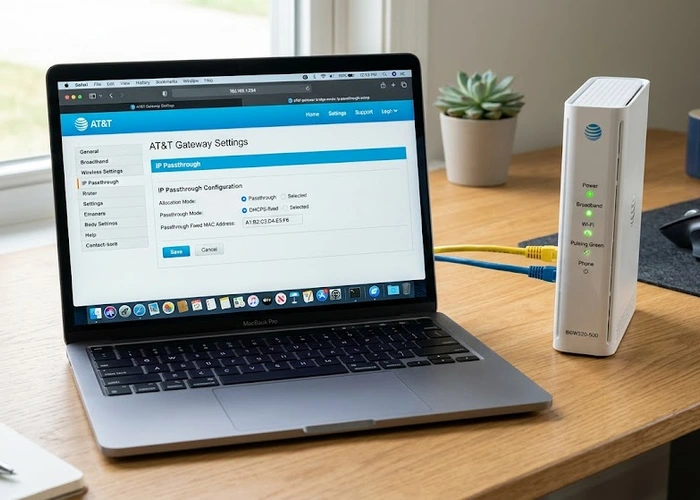
How to Set Up a VPN on Your Router

by Tommy N. Updated Apr 12, 2026

Setting up a VPN on your router encrypts all internet traffic from every device on your network — including smart TVs, game consoles, and IoT devices that can't run VPN apps directly.

Step-by-Step Guide

  1. Choose a VPN provider — popular options include ExpressVPN, NordVPN, and Surfshark. Make sure they support router installation.
  2. Login to your router — access the admin panel.
  3. Find VPN settings — look under "Advanced", "VPN", or "OpenVPN Client".
  4. Enter VPN configuration — upload the .ovpn config file from your VPN provider or enter server details manually.
  5. Connect and verify — enable the VPN and check your IP has changed at whatismyip.com.

Tips & Best Practices

  • Not all routers support VPN — you may need custom firmware like DD-WRT or OpenWrt
  • VPN on router will slow down your connection somewhat due to encryption overhead
  • Consider a VPN-compatible router for the best performance

Related Guides

setup-vpn-on-router guide

Video Tutorial

For more information, see Wi-Fi Alliance.

Pro Tip: The single most impactful WiFi improvement is router placement — center it in your home, elevated, away from walls and metal objects.

Key Takeaways

  • Always use WPA3 or WPA2-AES encryption — never WEP
  • Place your router centrally and elevated for best coverage
  • Use 5GHz for speed near the router, 2.4GHz for range
  • Change the default WiFi name to something unique and non-personal

Frequently Asked Questions

Can I put a VPN on my router?

Yes, if your router supports OpenVPN or WireGuard. Many newer routers have built-in VPN client support. Check your router's specs.

Will a VPN on my router slow down internet?

Yes, somewhat. The encryption adds overhead. Use a router with a powerful processor for better VPN performance.

About Tommy N.

Tommy is the founder of RouterHax and a network engineer with 10+ years of experience in home and enterprise networking. He specializes in router configuration, WiFi optimization, and network security. When not writing guides, he's testing the latest mesh WiFi systems and helping readers troubleshoot their home networks.

Promotion for FREE Gifts. Moreover, Free Items here. Disable Ad Blocker to get them all.

Once done, hit any button as below