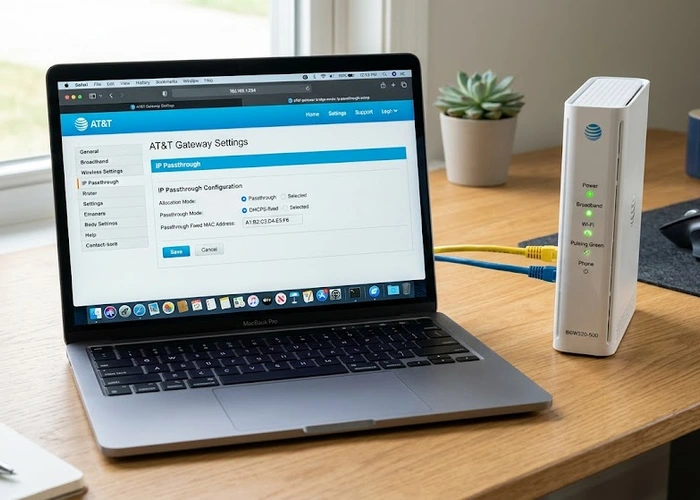
by Tommy N. Updated Apr 12, 2026
A static IP address ensures a device always gets the same IP on your network. This is essential for port forwarding, running servers, network printers, and security cameras.

For more information, see Wi-Fi Alliance.
Pro Tip: Use separate SSIDs for 2.4GHz and 5GHz only if you need to force specific devices onto a particular band. Otherwise, let band steering handle it.
Key Takeaways
A static IP is a fixed IP address assigned to a device on your network. Unlike DHCP, it doesn't change when the device reconnects.
You need a static IP for port forwarding, hosting servers, network printers, and security cameras — anything that needs a consistent address.
 |
 |
 |
 |

About Tommy N.
Tommy is the founder of RouterHax and a network engineer with 10+ years of experience in home and enterprise networking. He specializes in router configuration, WiFi optimization, and network security. When not writing guides, he's testing the latest mesh WiFi systems and helping readers troubleshoot their home networks.
Promotion for FREE Gifts. Moreover, Free Items here. Disable Ad Blocker to get them all.
Once done, hit any button as below
|
|
|
|